This guide explains how to set the account disk quota “full” notification percentage through WHM. This setting is used only to trigger disk usage warning notifications when an account reaches a specified percentage of its allocated disk quota.
Note: This setting does not restrict disk usage or suspend the account. It is used only for notification purposes.
It is important to remember that setting a low “full” percentage may cause early or unnecessary warning notifications to be sent to the account owner. On the other hand, setting a high “full” percentage may result in late notifications, which could cause the account to run out of disk space before any warning is issued. Therefore, it is recommended to choose a percentage that provides sufficient time to take action without generating excessive alerts.
Steps to Set the Account Disk Quota “Full” Notification Percentage Through WHM
- Log in to WHM.
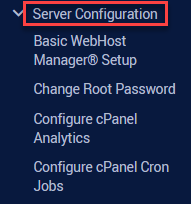
- Select the Server Configuration option.
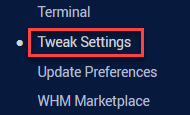
- Click on the Tweak Settings sub-option.
- Under the Notifications section, find the ‘Account disk quota full percentage [?]’ option.
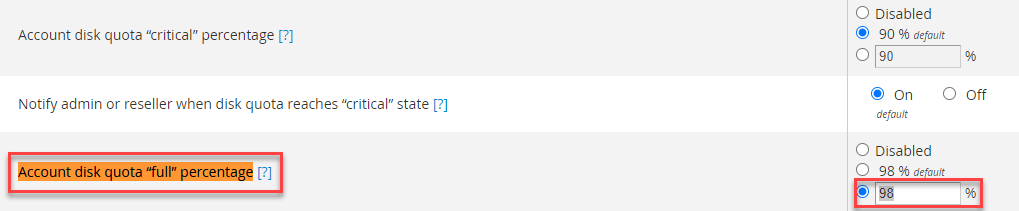
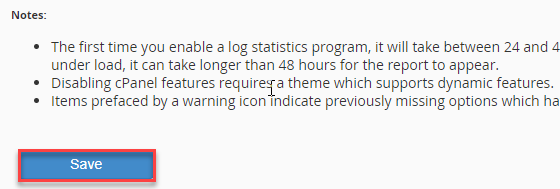
- Set the percentage value and click the Save button.
Additional Recommendation
When configuring disk quota notifications in WHM, it is also recommended to set an account disk quota “critical” percentage. This provides an earlier notification alert, allowing administrators to take preventive action before disk usage reaches the “full” threshold.
For detailed instructions, refer to our guide on how to configure WHM to set an account disk quota “critical” percentage.
For more articles, visit our knowledge base section.