Enhance lets you choose the PHP version used by a website and restart its PHP service when needed. This guide explains both actions and how to check the website afterwards.
Choose a compatible PHP version
Check the application, plugins and themes against the proposed version and test on staging first. Domains sharing the website’s PHP container can be affected by the change.
Available versions
The available versions and default depend on your hosting package and the installed platform. Use the current dropdown rather than a fixed version list in an older screenshot. A version’s availability does not establish that it still receives upstream security updates.
Version labels
Labels such as Latest or LTS describe the platform’s choices. Confirm the provider’s maintenance policy and PHP’s current support status before relying on a label for security support.
Change the version
-
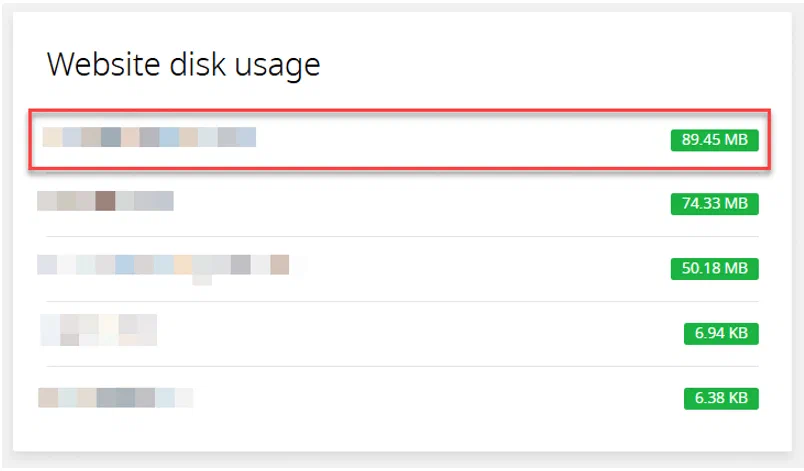
Open Websites and select the correct website.
-
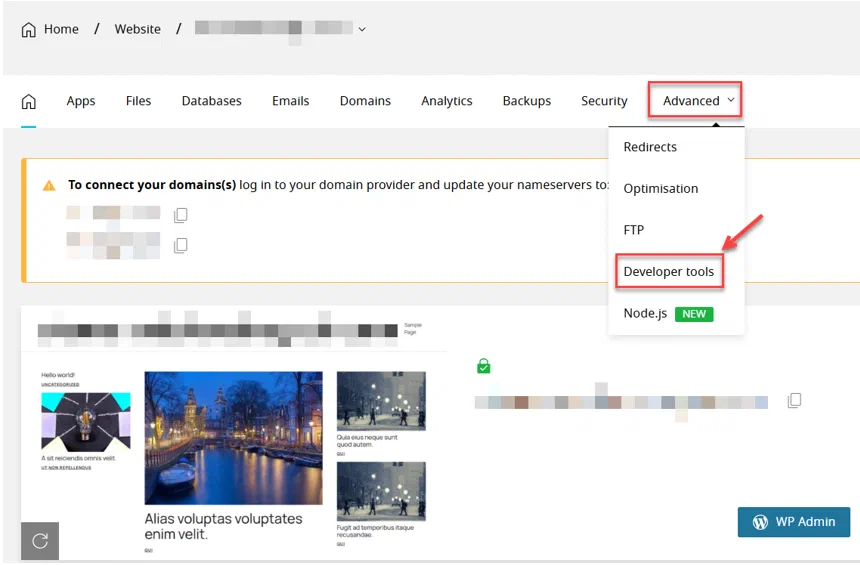
Open Advanced > Developer tools.
-
Find PHP version, select the compatible version and confirm with Update.
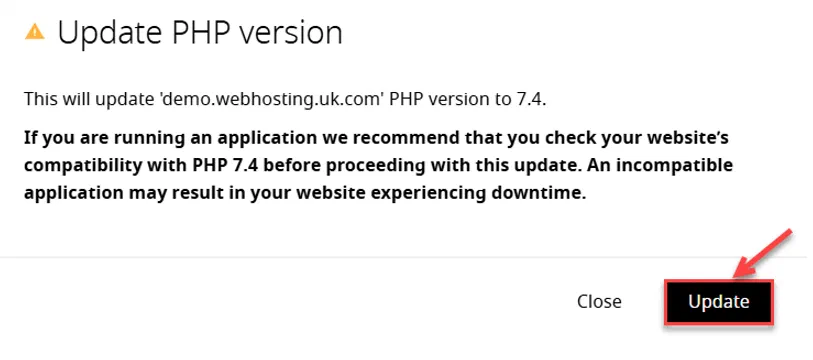
Test the application and check its error logs. Restore the previous setting if it fails while investigating compatibility.
Restart PHP
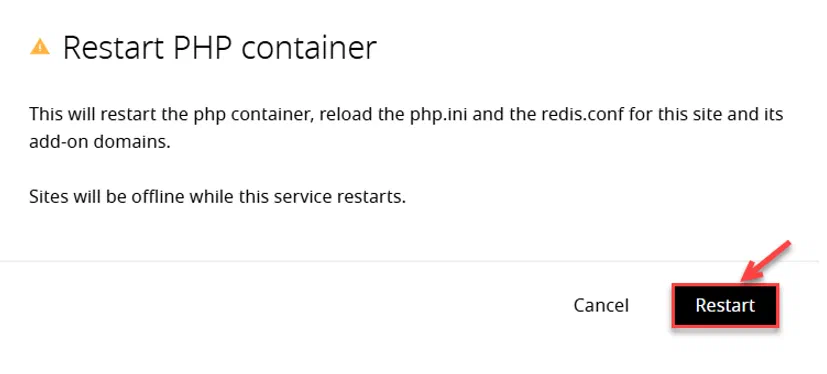
Restarting reloads the site’s PHP container configuration and terminates its current workers. It affects domains sharing that container.
The affected website is temporarily unavailable during the restart. Choose a suitable time, especially if uploads or other long-running requests are active.
-
Open the website’s Advanced > Developer tools and find PHP.
-
Under Restart PHP container, select Restart.
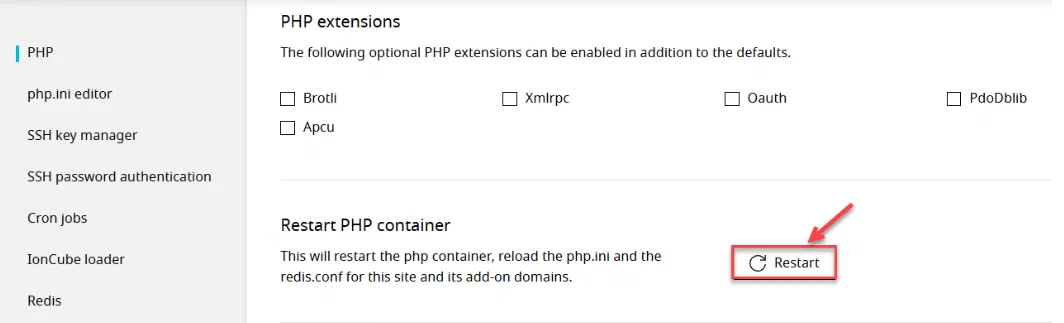
-
Confirm Restart, wait for completion and test the affected sites.