Table of Contents
Logging In
To log in to the Enhance control panel:
- Navigate to Login URL.
- Enter your Email address and Password.
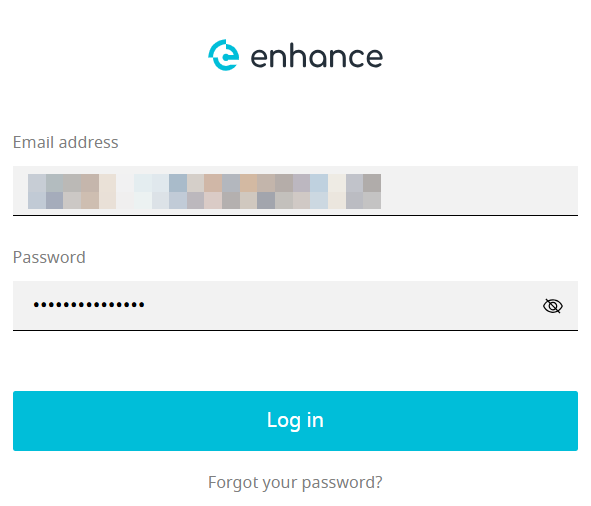
- Click Log in.
On successful login in you will be redirected to your account dashboard. This houses an overview of your services.
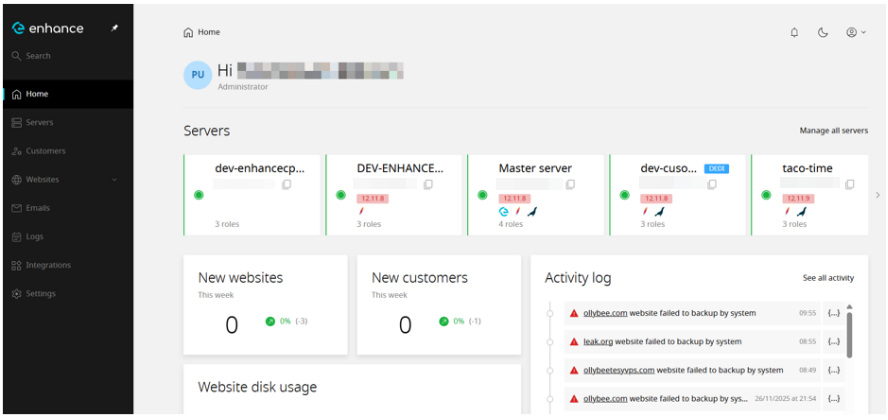
NOTE: Your password can be found in the activation email, which was sent to the email address used to register with Webhosting.uk.com
Logging out
NOTE: As a security precaution, you will automatically be logged out of the Enhance control panel after 2 hours of inactivity.
To manually log out of the Enhance control panel:
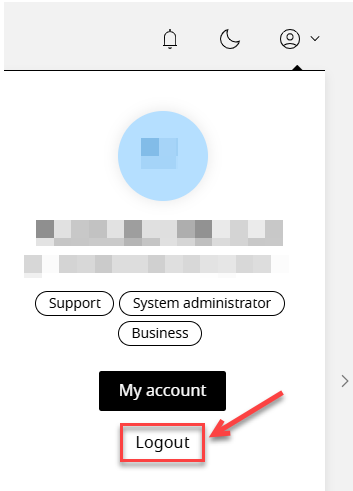
On logging out, you will be redirected to the Enhance login page.
Change the Enhance language
The Enhance control panel is available in your preferred language.
To change the Enhanced language:
- Select the Account icon in the top right-hand corner of your account.
- Select My account.
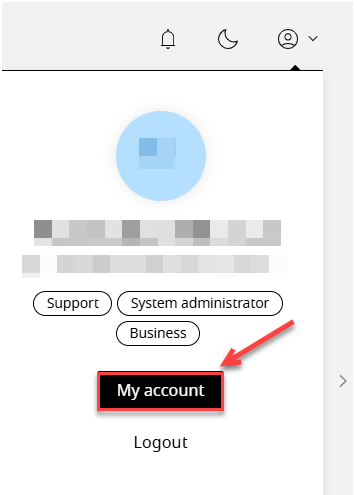
- When the page loads, scroll to Profile.
- Select your preferred language.
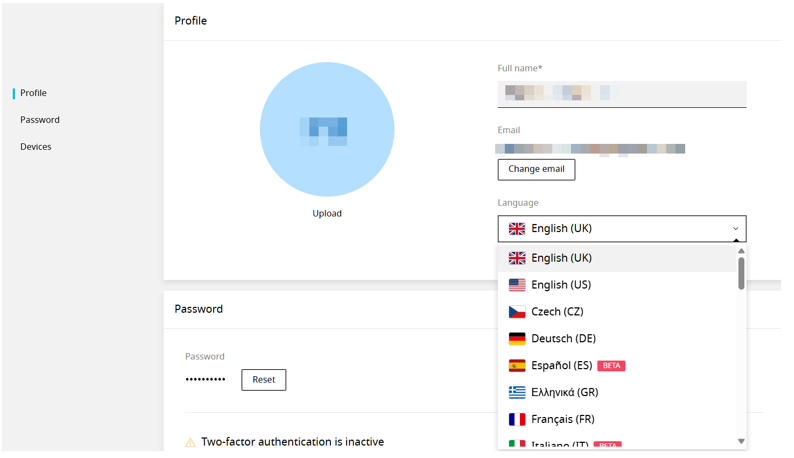
Your language selection will be saved automatically.
NOTE: All ‘Password reset’ and ‘User invite’ emails sent from the control panel will be sent in English.
Resetting your Enhance password
To reset your Enhance control panel password:
- Navigate to Login URL.
- Select the Forgot password link.
- Enter the email address associated with your account and select the Recover password.
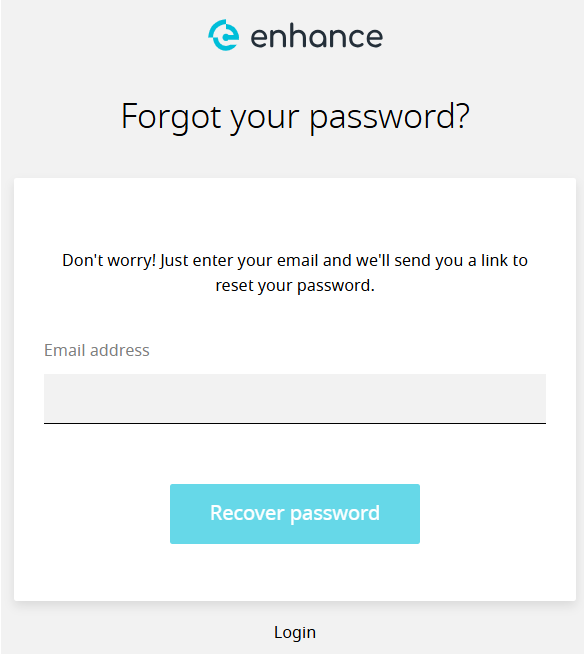
An email with the subject: Password reset will be sent to your registered email address.
Note: If you do not receive this email, please check your spam folder, ensure the email address you entered is spelt correctly and wait 5 minutes before requesting another password reset.
NOTE: To change your account password whilst logged into your account, visit My account > Password > Reset.
Managing users in Enhance
An unlimited number of users can safely access an Enhance account through role-based access. Each user is assigned a defined role that determines their permissions and visibility.
User roles and permissions:
Super Admin: This role provides unrestricted access to an account; they can manage all websites, emails and can manage users. They are unable to delete the owner.
Collaborator: This role provides unrestricted access to a specific website.
NOTE: The collaborator role will only show once a website has been added to your account.
Invite a user
To invite a user to an Enhance account:
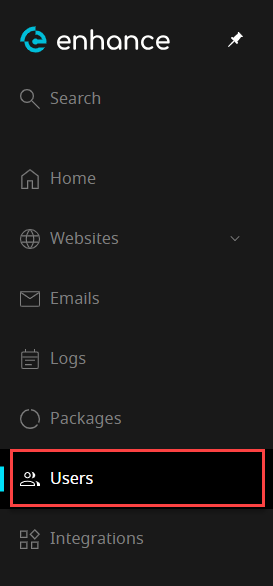
- Open Users in the left side bar.
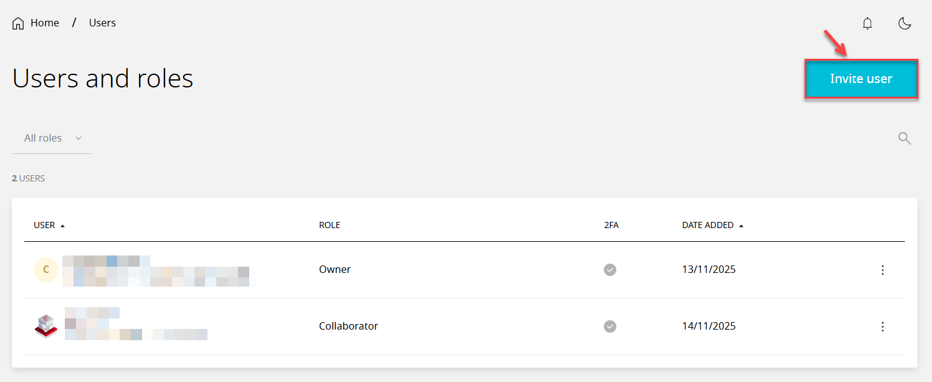
- When the Users page loads, select Invite users.
- When the form loads, input the user’s Full name and Email address.
- Select an invite method (Email or Link).
- Select a Permission.
- Click Invite to finish.
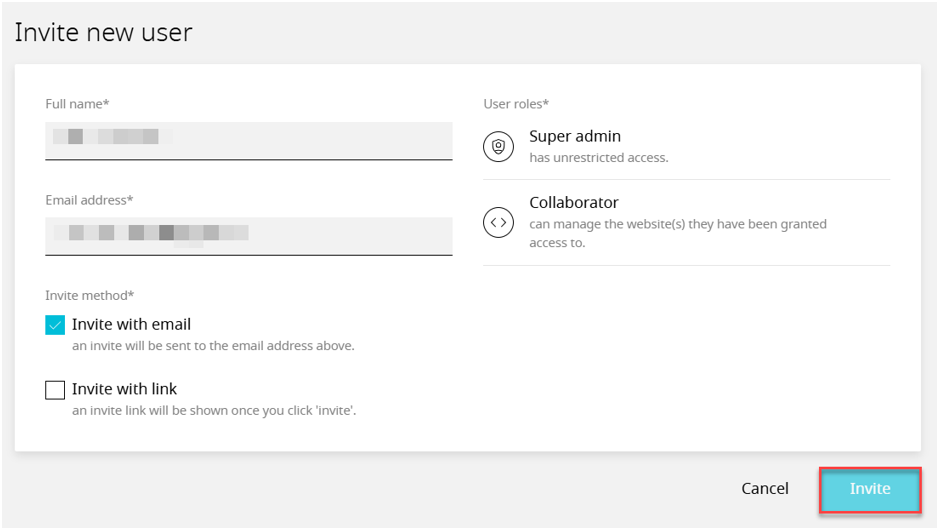
After your invite is sent, you will be redirected to the Users page. The newly invited user will remain pending until the invitation is accepted. The pending state can be identified by the orange clock icon.
Revoke a user’s access
To revoke a user’s access to your Enhance account:
- Open Users in the left side bar.
- When the Users page loads, locate the user you would like to remove and select the menu.
- Click Delete.
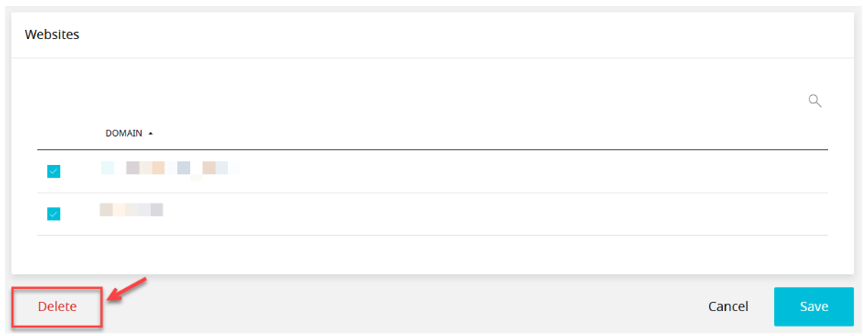
- When the confirmation modal loads, select Delete.
This will revoke the user’s access to your Enhance account. The user can be re-added as an additional user at any point.
Ready to set up your first website on Enhance? Check our guide How to Add a New Website or Migrate Your Website from cPanel to Enhance