Table of Contents
Adding a New Website in Enhance
If you have an existing website that you would like to migrate to Enhance, please see Import a website to Enhance.
To add a new website to Enhance:
- Open Websites in the left sidebar.
- When the Websites page loads, select Add website.
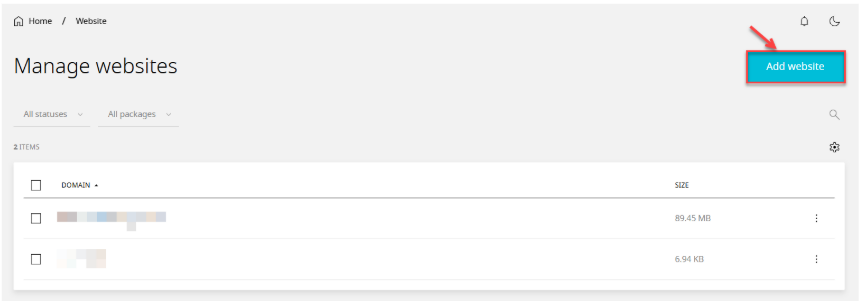
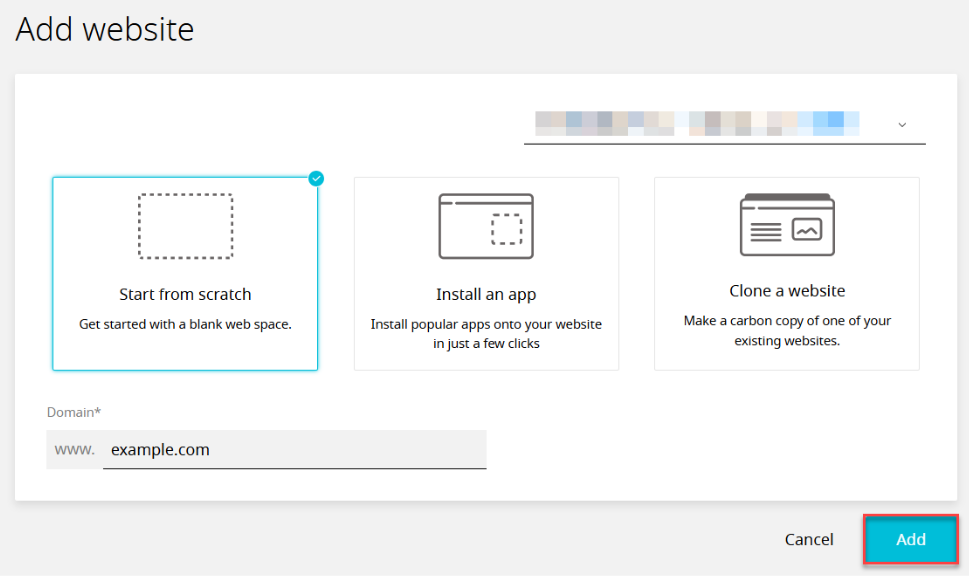
- When the form loads, select from the following (availability depends on your package):
- Staging or Production
Staging: - A staging website will be pre-fixed with {staging_domain} and does not count towards ‘Website’ usage. Domain mappings, search engine indexing, and email functionality are not available on staging websites. A staging website can be pushed to production at any point.
Production: A production website is live and publicly accessible. It counts towards your ‘Website’ usage. - Website Type
- Start from Scratch: This will create an empty website ready for you to upload your website files and databases.
- Add a WordPress Site: This will create a website with WordPress pre-installed. You will be prompted to create a WordPress user and will have access to a WordPress toolkit.
- Add a WooCommerce Site: This will create a website with WooCommerce pre-installed. You will be prompted to create a WordPress user and will have access to a WordPress toolkit.
- Clone a Website: This will make a direct copy of an existing website, including all existing files and databases. Email accounts will not be cloned. If you do not have any websites yet, cloning functionality will be disabled.
- Staging or Production
- Complete the form.
- Click Add to finish.
Once the website is successfully added, you will be redirected to the website management dashboard. From here you will be able to manage every aspect of your website including applications, security, domains, emails, and more.
Move an Existing Website to Enhance
Websites currently hosted on cPanel or Plesk can be migrated seamlessly to Enhance using a wizard that transfers all website files, databases, and email accounts. After migration, your website will function exactly as before, retaining the same passwords.
cPanel Migration
Moving a cPanel website to Enhance will restore a full cPanel account backup. Some proprietary features available on cPanel are not supported on Enhance; these tools will not be copied across.
The following will be imported:
- Primary website
- Sub, add-on and parked domains will become mapped domains within a single website
- All files
- All database
- Any installed applications
- All email accounts with their passwords and email data
- All forwarders-only accounts
- Any existing SSL certificate
- Cron jobs
- FTP accounts
- MX and TXT for SPF records
The following proprietary tools are not supported on Enhance:
- Postgres databases
- Wildcard subdomains
- Mailman settings
- Directory privacy
- PostgreSQL databases
- Catch all email addresses
- Autoresponders
- Calendars and contacts
- Existing statistics
- Error pages
To move an existing cPanel website to Enhance:
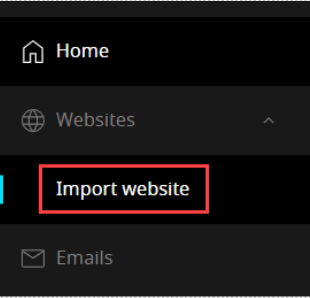
- Expand Websites in the left side bar, then select the Import website.
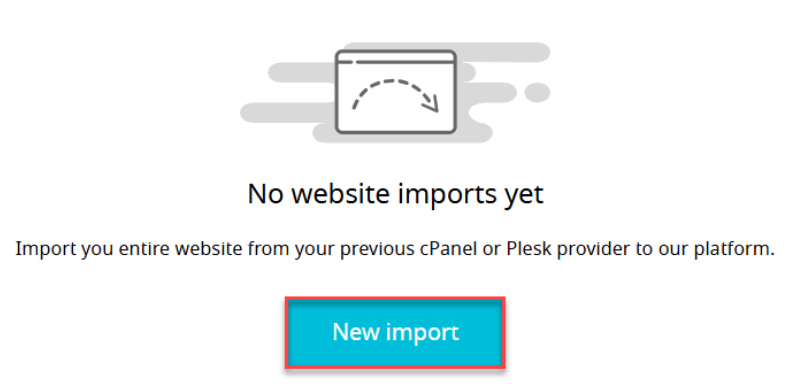
- Click New import.
- Select cPanel.
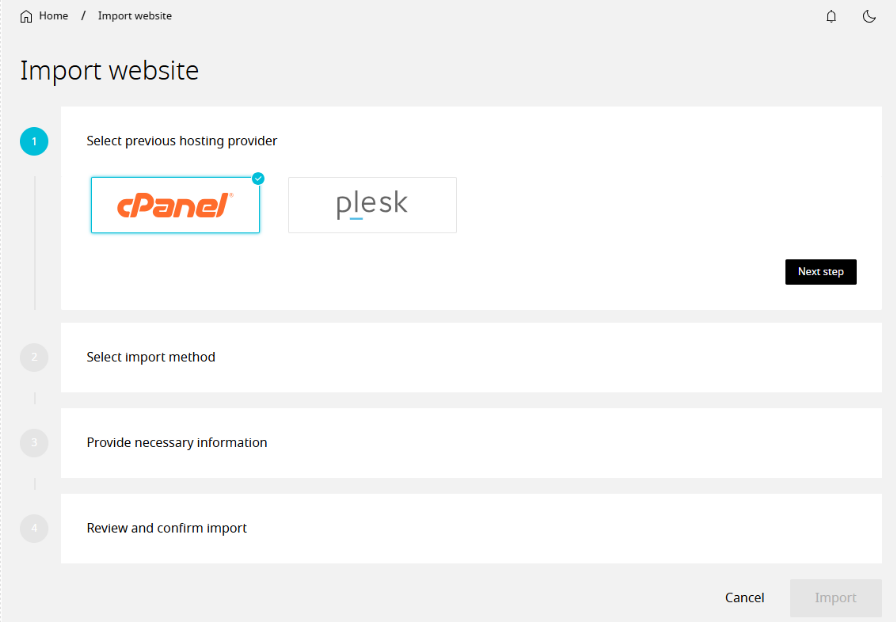
- Follow the onscreen instructions to generate a compatible cPanel backup. Your backup must be a full account backup. Save the tar.gz file to your desktop.
- Click Next step.

- Select the Choose file to upload your cPanel backup.
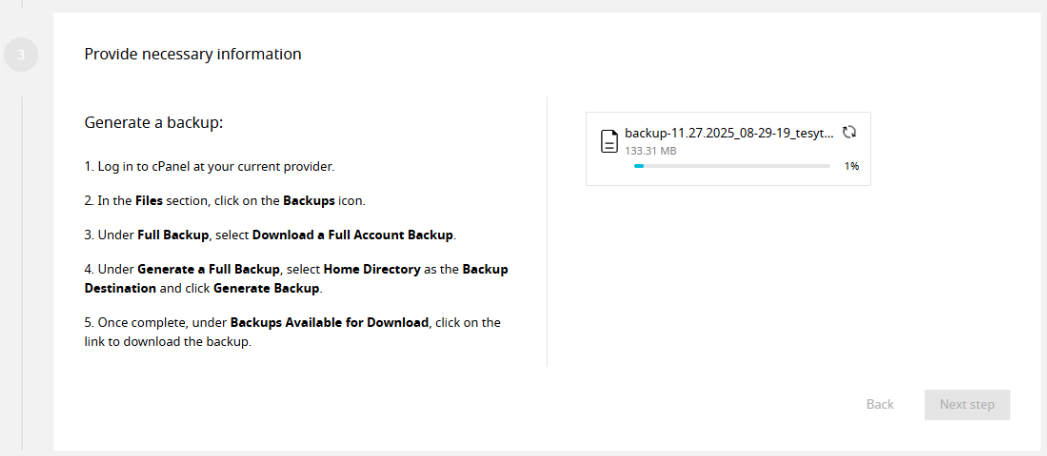
- Select Next step.

- Once the page is loaded. Check for and address any conflicts that may appear.
NOTE: Any conflicts that are blocking your website’s import will be highlighted in the red modal. - If there are no conflicts, you may proceed to the next step.
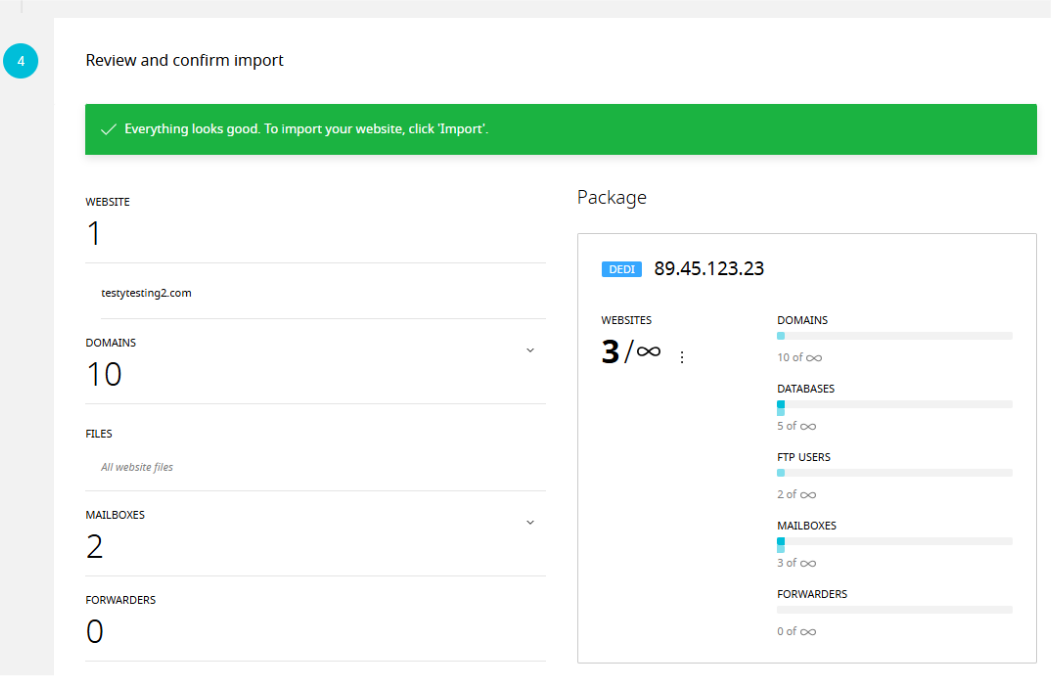
- Select the Import to finish.

You will be redirected to a page that shows the progress of the import. Once the website is successfully imported, it will appear in your website listing, where you can access all the management features available in Enhance.
After adding your website, the next step is to learn How to Change PHP Version and Restart PHP for a Website in Enhance