This guide explains how to block an IP address using CSF Firewall in WHM, helping improve server security and reduce malicious traffic. The steps are simple and suitable for both beginners and experienced server administrators.
Table of Contents
What is CSF (ConfigServer Security & Firewall)?
CSF is a popular, advanced firewall plugin for Linux servers. It integrates with cPanel/WHM and provides features such as:
Its WHM interface makes security management easy without needing command-line access.
Why Block an IP Address?
Blocking an IP address is an important security measure when you notice suspicious or harmful activity on your server. You may want to block an IP in situations such as:
- Brute-force login attempts: When an IP repeatedly fails to log in to WHM, cPanel, or SSH, it indicates a possible hacking attempt.
- Malicious bot traffic: When automated scripts or bots send excessive or harmful requests to your websites.
- Spam-related activity: When an IP is detected sending spam emails or abusing mail services.
- DDoS-like behaviour: When an IP generates unusually high or abnormal traffic that impacts server performance.
- Unauthorised access attempts: Any activity in server logs that indicates potential intrusion attempts.
How to Block an IP Address Using CSF in WHM?
- Log in to WHM.
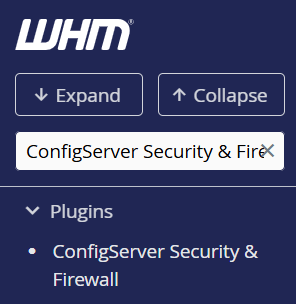
- Navigate to CSF:
- In the left WHM menu, search for “ConfigServer Security & Firewall”.
- Click ConfigServer Security & Firewall.
- Add the IP to the Deny List:
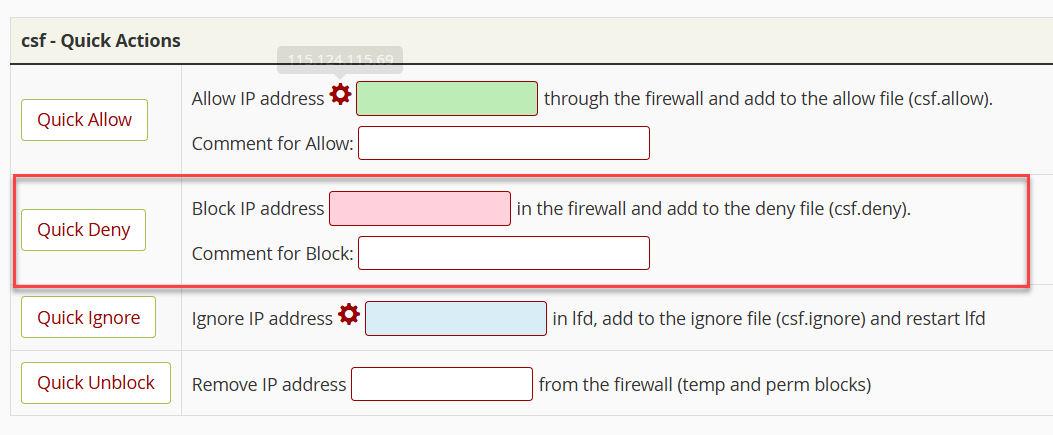
- Scroll down to the “Quick Deny” section.
- Enter the IP address you want to block.
- Add a reason (optional but recommended) — e.g., Brute-force attack.
- Click Quick Deny.
- Alternatively, you can manually add the IP under:
Firewall Configuration > csf.deny
- Restart CSF & LFD
After blocking the IP, click Restart CSF + LFD.
This ensures the new rule is applied immediately.
How to Unblock an IP Address in CSF?
If you need to remove an IP from the block list:
- Open ConfigServer Security & Firewall in WHM.
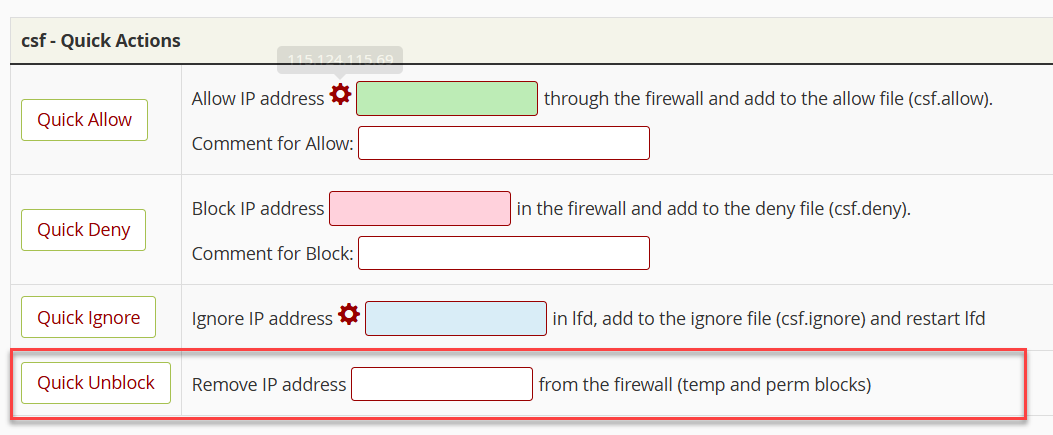
- Go to Quick Unblock.
- Enter the IP address.
- Click Quick Unblock.
csf.deny
Restart CSF again to apply changes.
Tips & Best Practices
- Avoid blocking entire IP ranges unless necessary.
- Keep CSF updated to the latest version.
- Enable LFD (Login Failure Daemon) to auto-block abusive IPs.
- Whitelist your own IP to prevent accidental lockouts.
- Review server logs regularly for suspicious activity.
Conclusion
Blocking an IP in WHM using CSF is a fast and effective method to secure your server. By using the Quick Deny feature, you can protect your server from brute-force attacks, bots, and suspicious traffic. Regular monitoring and proper firewall rules help maintain a secure hosting environment.
Looking to manage your server’s security more efficiently? Check out our guide on How to configure the CSF firewall in WHM