Web Disk in cPanel allows you to access your website files remotely using your operating system’s file manager. Configuring client access generates the required connection details and setup scripts for supported operating systems.
Follow the steps below to configure client access using Web Disk in cPanel:
- Log in to the cPanel account.
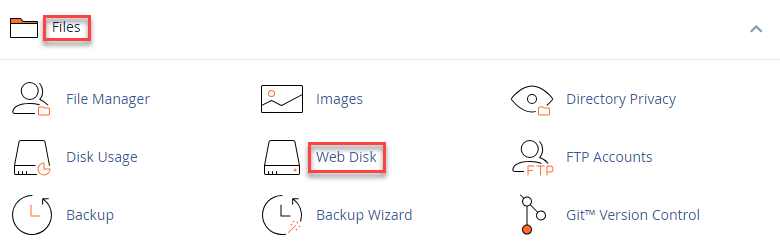
- Under the Files section, click on the Web Disk sub-option.
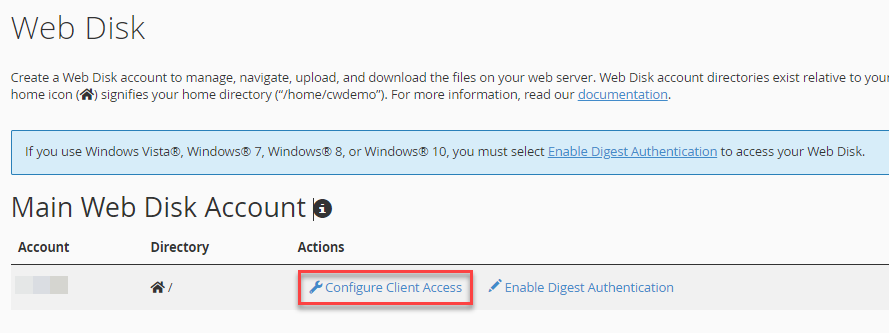
- Click on the “Configure Client Access” option under “Actions”.
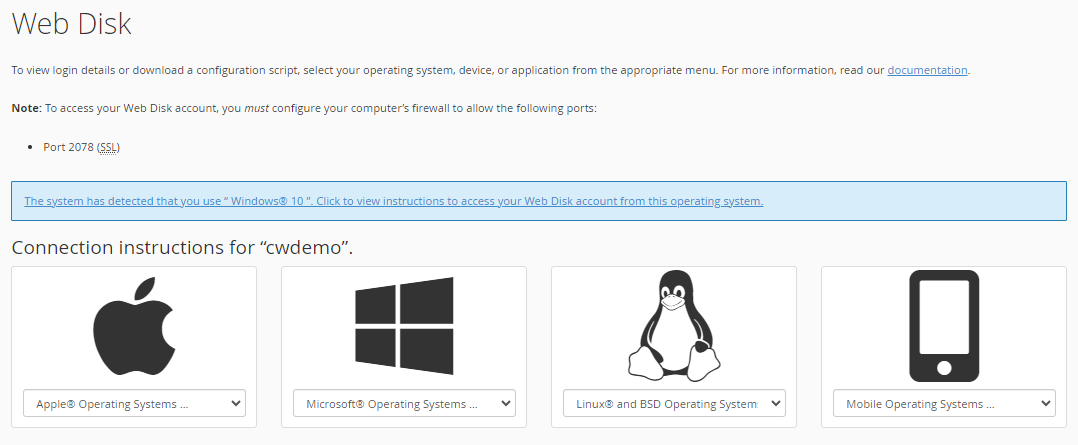
- Select the Operating system.
- Click on the “Download configuration script” button.
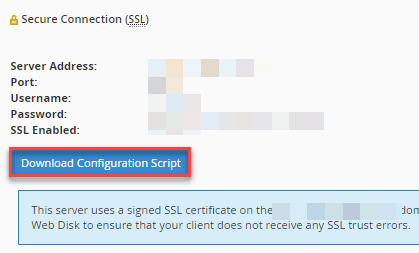
- Save the file to your local PC.
Once configured, you can connect to your hosting account using a file manager to view, upload, and manage website files remotely.
Configuring client access via Web Disk enables secure remote file access but does not directly upload files through cPanel itself. Instead, it allows you to manage website files using your local system after the connection is properly set up.
Also Read: How to Access the WHM Account of your Reseller Client