A straightforward PHP script can be used to learn about the Configurations and versions of PHP that are installed on your computer. A PHP method called phpinfo() is used in the script to output details about PHP’s setup.
This guide will help you in checking the PHP version and configuration in cPanel.
To check the PHP version and configuration, follow the steps:
- Log in to your cPanel account.
- Select the Files option and click on the File Manager sub-option.

- Select the public_html directory.

- Click on the +File option.
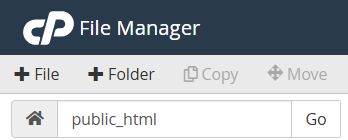
- Enter phpinfo.php as a new file name and click on the Create New File button.

- You will find the new file added to the list.
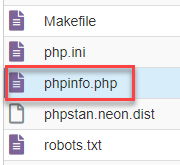
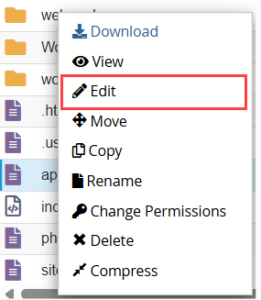
- Select the file, then click the Edit button.
- Enter the code given below.
<?php
phpinfo();
?>

- Click on the Save changes button.

- You will get a success message.
- Open the link http://yourdomain.com/phpinfo.php in your browser, replacing yourdomain.com with your primary domain, to view complete information on your account’s PHP settings.
- For security reasons, do not forget to delete the file after seeing all the information.


This way, you can check the PHP version and configuration. After checking your PHP version and configuration, you may want to customise the PHP version for each domain. Learn: how to configure cPanel’s PHP version setting for an individual domain.