This guide explains how to disable SSH password authentication in WHM. Disabling SSH password authentication improves server security by allowing users to log in using SSH keys instead of passwords, which helps protect against brute-force attacks.
Before disabling SSH password authentication, make sure that:
- You have already configured SSH key-based authentication for at least one user.
- You can access the server via SSH using a private key.
Failing to do so may result in being locked out of the server.
Steps to Disable SSH Password Authentication in WHM:
- Log in to WHM using your root or reseller credentials.
- From the left-hand menu, navigate to Security Center.
- Click on SSH Password Authorisation Tweak.
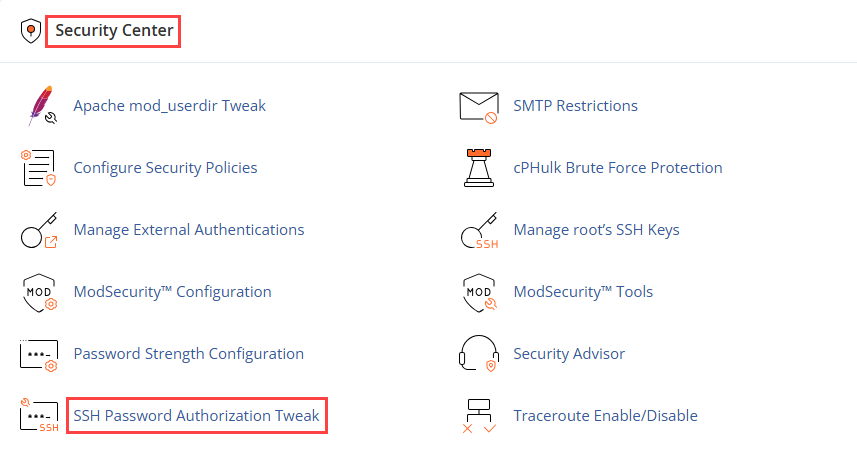
- You will be redirected to the SSH Password Authorisation page.
- Click on the Disable Password Auth button.

- Once disabled successfully, you will see the message:
“Password Auth has been disabled!”
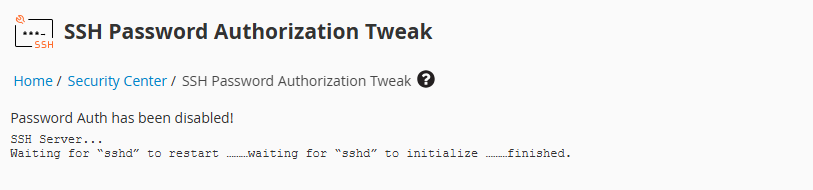
This confirms that SSH password authentication is now turned off and only SSH key-based access is allowed.
Important Notes
- This change applies only to SSH access, not to WHM or cPanel web logins.
- Always ensure strong SSH key security and proper user access control.
- You can re-enable SSH password authentication at any time if required.
By disabling SSH password authentication in WHM, you significantly enhance server security by enforcing private key-based SSH access.
For further assistance, please contact the Webhosting UK support team.