If two-factor authentication is enabled, you must enter a unique code along with your regular password when you log in. This adds an extra layer of protection. This code is generated by an app on your smartphone. And this changes every 60 seconds.
No one can log in without both your password and access to your smartphone to generate the code, making it highly effective at keeping intruders at bay.
Enable 2FA
- If you don’t already have an authentication app installed on your smartphone or tablet, you will need to download one. We recommend either Google Authenticator or Microsoft Authenticator; both are available for free from the Google Android and Apple IOS app stores; however, any app that supports the OTP authentication standard will work.
- Log in to cPanel.
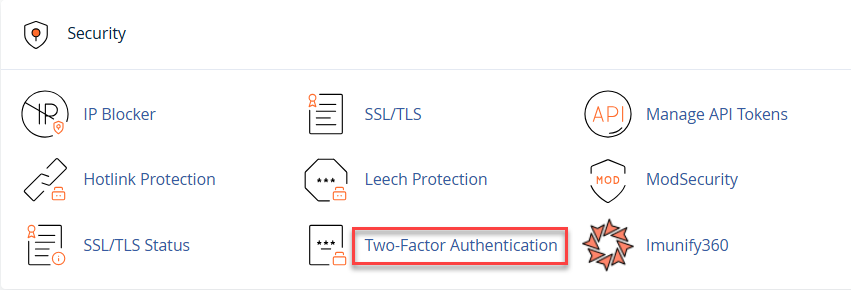
- Scroll down to Security.
- Click Two-Factor Authentication.
- Click Set Up Two-Factor Authentication.
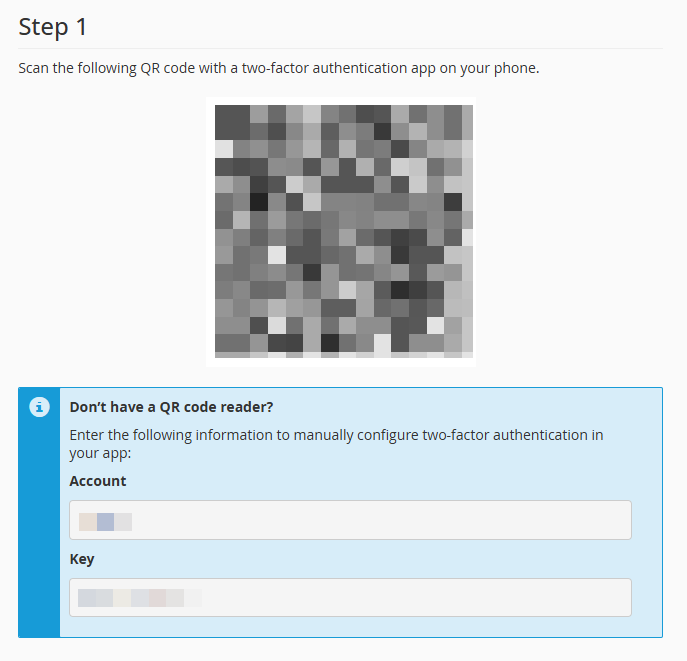
- Open your authentication app and scan the onscreen QR code or enter the key code into your app.
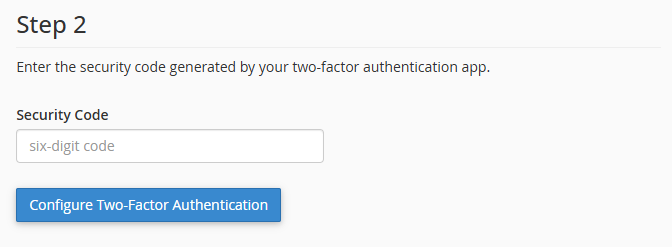
- Enter the 6-digit security code generated by your app into the box titled Security Code.
- Click Configure Two-Factor Authentication.
2FA is now configured. Next time you log in, you will be asked to enter a code generated by your app.
Reconfiguring 2FA
If you need to set up 2FA again, for example,e if you have a new device, you can do as follows:
- Log in to cPanel.
- Scroll down to Security.
- Click Two-Factor Authentication.
- Click Reconfigure two-factor authentication.
If your device with the 2FA app is lost or stolen, don’t worry. Simply contact our support team, and after verifying your identity, they will assist you in resetting your 2FA.