Backing up a MySQL database is essential when exporting data, migrating a website, or protecting your information against data loss. cPanel provides multiple ways to back up a database, including built-in backup tools and manual export options.
Below are two reliable methods to back up a MySQL database in cPanel.
Method 1: Back Up a MySQL Database Using Backup Wizard (Recommended)
The Backup Wizard is cPanel’s built-in tool and the safest option for most users.
- Log in to your cPanel account.
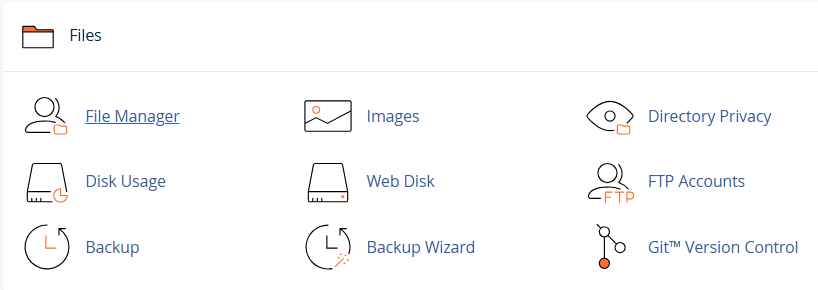
- Navigate to the Files section and click Backup Wizard.
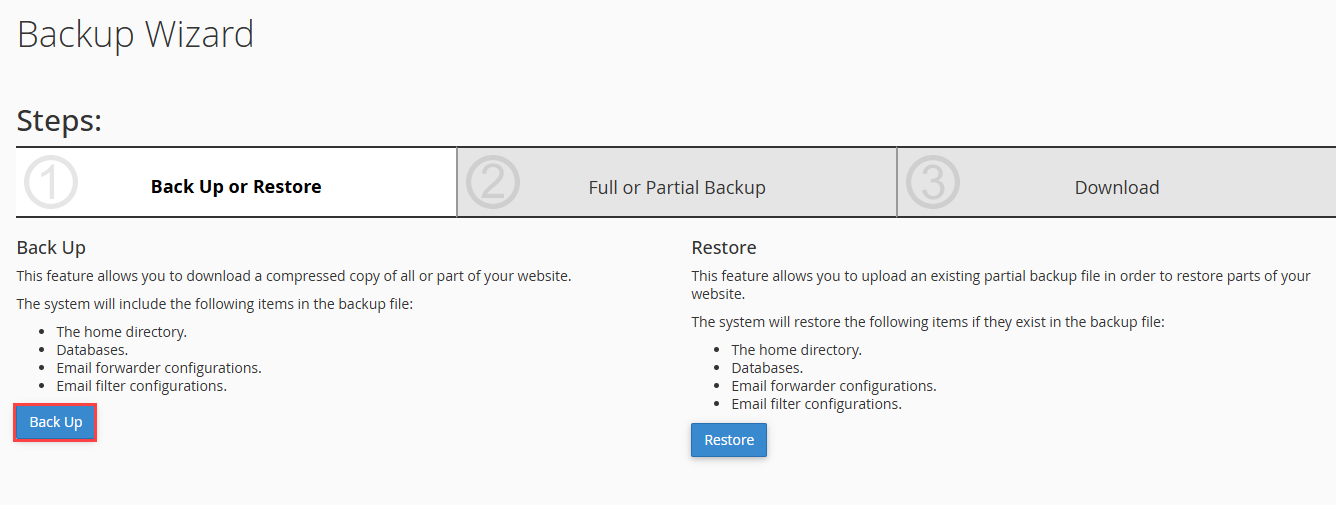
- Click Backup.
- Select Partial Backup.
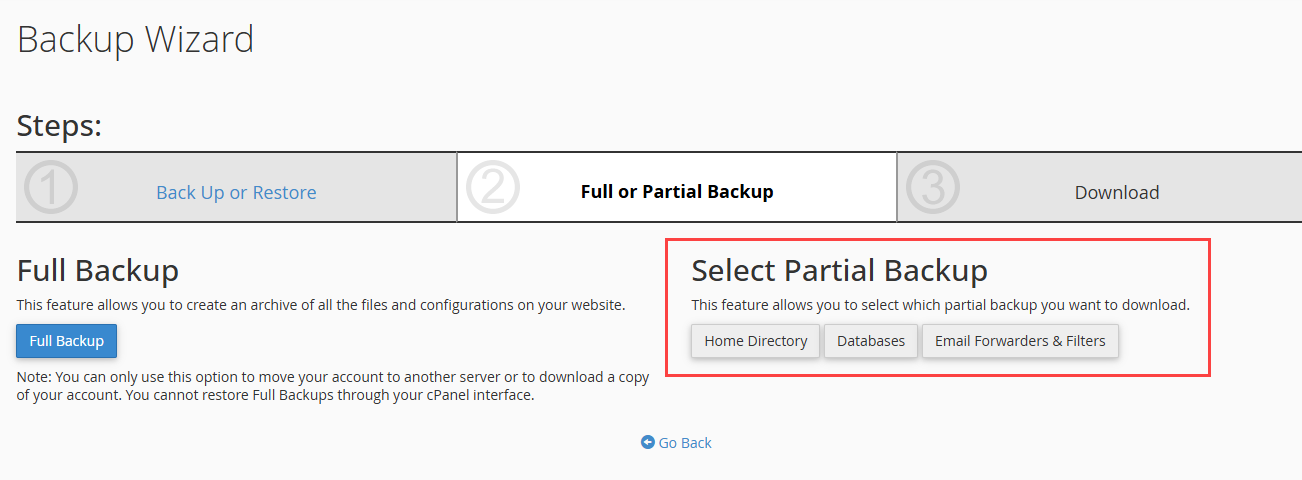
- Choose Databases.
- Click the database you want to back up.

- The database backup will be generated and downloaded to your local computer.
Save the downloaded file in a secure location. This backup can be used later to restore the database or migrate it to another hosting account.
Method 2: Back Up a MySQL Database Using phpMyAdmin
This method allows you to manually export a database.
- Log in to your cPanel account.
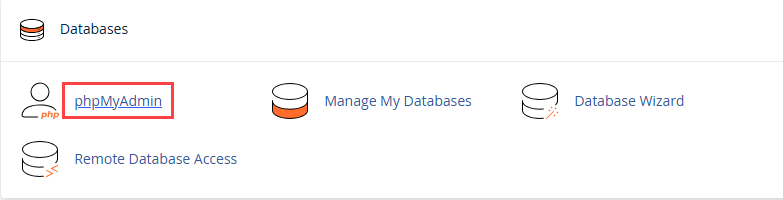
- Scroll to the Databases section and click phpMyAdmin.
- From the left-hand panel, select the database you want to back up.

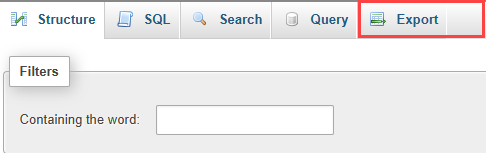
- Click the Export tab at the top.
- Choose the Quick export method.
- Keep the format set to SQL and click Go.

- The database will be downloaded to your local system. Once the download is complete, store the file securely for future use.
The simplest and suggested method for backing up a MySQL database in cPanel, particularly for novices, is to use the Backup Wizard. However, if you require greater control over database exports, phpMyAdmin offers a helpful manual substitute.
This is how a MySQL database in cPanel may be reliably backed up.