We have covered how to remove files from a cPanel server backup in this article. All of the server’s web file data is typically kept in backups.
If you host on a cPanel server, you can choose which files to omit from the backup.
Let us take the following actions to remove files from a cPanel backup:
- Open the cPanel account and log in.
- Click on the “Files” menu.
- From the menu on the left side of the screen, select “File Manager.”
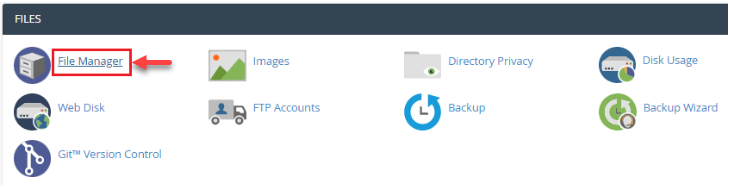
- A fresh user interface will launch.
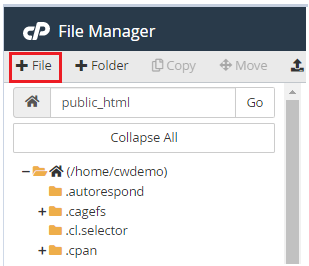
- The “+file” option, located on the upper left portion of the screen, allows you to start a new file.
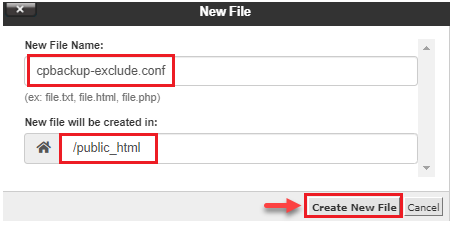
- As the “New File Name,” type “cpbackup-exclude.conf.”
- Type in the path to be used for the newly created file.
- Select the “Create New File” menu item.
- You will discover that the file has been generated.
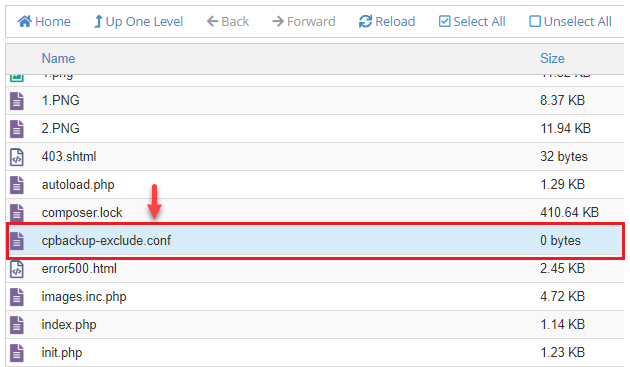
- After choosing the recently generated file, do a right-click and choose “Edit.”
- Paste the code into the file after copying it.
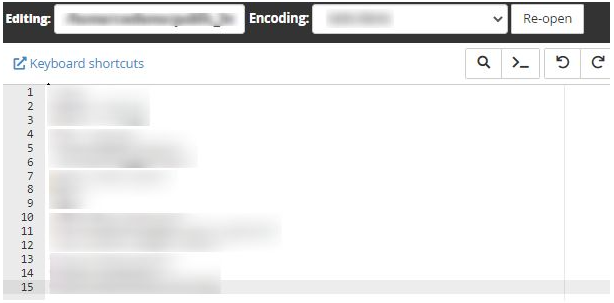
- Select “Save Changes” from the menu.

- These files and folders will be removed for all users by the backup system.
This is one method of removing files from a cPanel server backup.
Get in touch with our support staff for further details. Check out our most recent web hosting options without failing.