Static websites are built on top of HTML and CSS. A webpage’s structure is defined by HTML, while its layout, design, and visual appeal are managed by CSS. These files need to be uploaded to the appropriate directory in your cPanel hosting account in order to be available online.
This guide explains how to upload HTML and CSS files in cPanel using File Manager and ensures your website loads correctly after upload.
Before You Begin, make sure you have:
- Your HTML file (usually index.html)
- One or more CSS files (for example, style.css)
- Access to cPanel login credentials
Important:
Your main homepage file must be named index.html for it to load automatically when someone visits your domain.
Steps to upload the HTML and CSS file to cPanel:
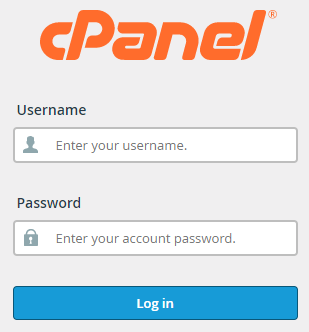
- Log in to cPanel.
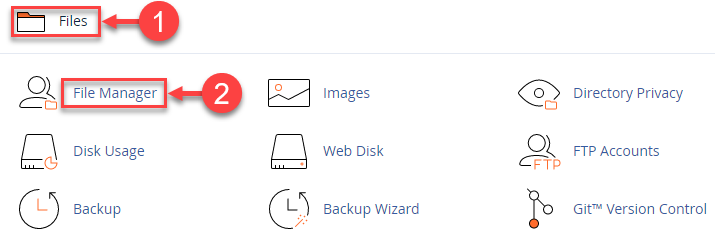
- Select the “File Manager” option under the “Files” category.
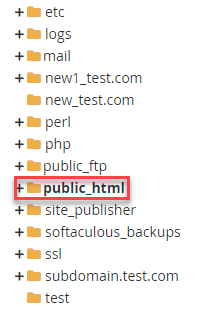
- Your website can be published using File Manager. Find “public_html” by searching in the file manager’s left sidebar.
Why public_html?
This is the root directory for your website. Any file placed outside this folder will not be publicly accessible.
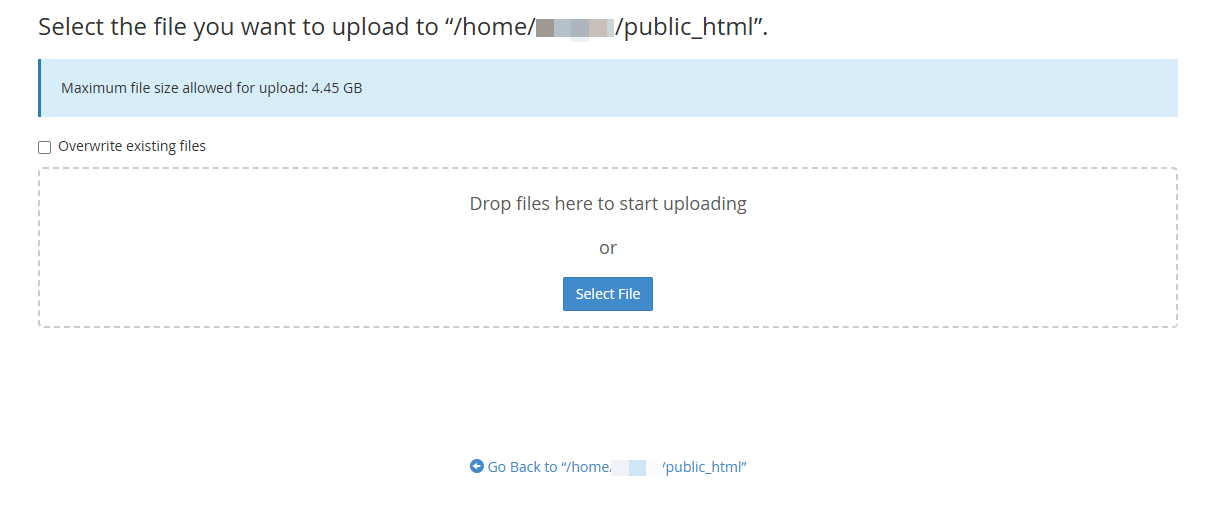
- Click the Upload button from the top menu. Upload:
- html
- Your CSS file(s) (e.g., style.css)
- Any supporting files (images, fonts, JS files)

- After the upload completes, click Go Back to /home/username/public_html.
- Organise Files Correctly (Best Practice)To avoid broken styles:
- Place CSS files inside a folder such as /css/
- Update your HTML file to link the CSS correctly:
<link rel="stylesheet" href="css/style.css">
Incorrect paths are one of the most common reasons CSS does not load.
- Open your domain in a browser; if the page loads without proper styling, recheck file names (case-sensitive), confirm CSS file paths, and clear the browser cache.
- Click on the link back to /home/customer/public_html after the uploading is done.
- You can find your uploaded files in the File Manager.
In such a manner, you can upload the HTML and CSS files to cPanel. Hope you liked our article. If you face any difficulty, contact our support team.
A cPanel Web Hosting solution provides an easy-to-use control panel for managing files, websites, databases and email accounts.