Call us now: 0113 541 7880
Live Chat
Contact Us
Shopping Cart
WHUK WHUK
  • Hosting
    • Web Hosting Perfect for personal websites, our shared hosting is packed with features with 24/7 support.
      Learn More
    • Windows Hosting Microsoft® Windows web hosting powered by professional enterprise Windows servers.
      Learn More
    • Website Builder Intuitive Website Builder with over 150 professional template designs to choose from.
      Learn More
    • Email Hosting Secure and reliable email hosting service that you can count on.
      Learn More
    • Reseller Hosting Resell Linux hosting with one of our easy to use unlimited reseller plans.
      Learn More
    • Wordpress Hosting Enjoy fast performance and security with our WordPress optimised website hosting plans.
      Learn More
  • Servers
    • Linux VPS Hosting Powerful Linux virtual private servers with the latest Intel Xeon processors and SSD storage for the ultimate in performance.
      Learn More
    • Windows VPS Hosting Microsoft® Windows virtual private servers come with pure SSD storage and 24x7 professional technical support.
      Learn More
    • Cloud Servers Enterprise cloud servers designed for mission critical applications.
      Learn More
    • Dedicated Servers Our managed servers deliver unparalleled compute power for mission-critical apps.
      Learn More
  • Domains
      Search & Register Your Perfect Domain Name
      Search icon
      ․com

      £9.99/yr

      ․org

      £9.99/yr

      ․info

      £15.99/yr

      ․co․uk

      £8.39/yr

      ․net

      £9.99/yr

      See full TLD list
  • Security & Tools
    • SSL Certificates Essential security for your website with secure 2048-bit encryption and domain level validation.
      Learn More
    • Backup Solutions Protect your business from data loss with consistent website and server backup solutions.
      Learn More
    • Email Certificates Protect your identity and reputation with digitally signed and encrypted emails.
      Learn More
    • SpamExperts Eliminate spam, viruses, phishing and malware attacks before they ever reach your mailbox.
      Learn More
    • SEO Tool Get more website visitors and improve sales with the all-in-one SEO tool.
      Learn More
    • CloudLinux
      CloudLinux Boost security, density and efficiency of shared server hosting environment.
      Learn More
    • Imunify 360
      Imunify 360 Imunify360, a Linux-based automated security solution, keeps malicious threats at bay.
      Learn More
    • Acronis Backup
      Acronis Backup Protects your business from data loss, Our advanced website and server backup solutions.
      Learn More
  • Client Login
Back to Blog Home

How to enable two-factor authentication (2FA) October 6, 2023

October 6, 2023 / Account Management

To keep your account secure, we strongly recommend enabling Two-Factor Authentication (2FA) in your client portal. 2FA adds an extra layer of protection by requiring a one-time verification code during login, in addition to your password.

Before You Begin

Make sure you have an authenticator app installed on your smartphone, tablet, or PC. You can use any of the following free apps:

  • Google Authenticator
  • Microsoft Authenticator

These apps are available on Android, iOS, and Microsoft app stores.

How to Enable Two-Factor Authentication (2FA)

Follow the steps below to enable 2FA from your client portal:

  1. Log in to Your Client Portal
    Log in to your client portal using your registered email address and password.
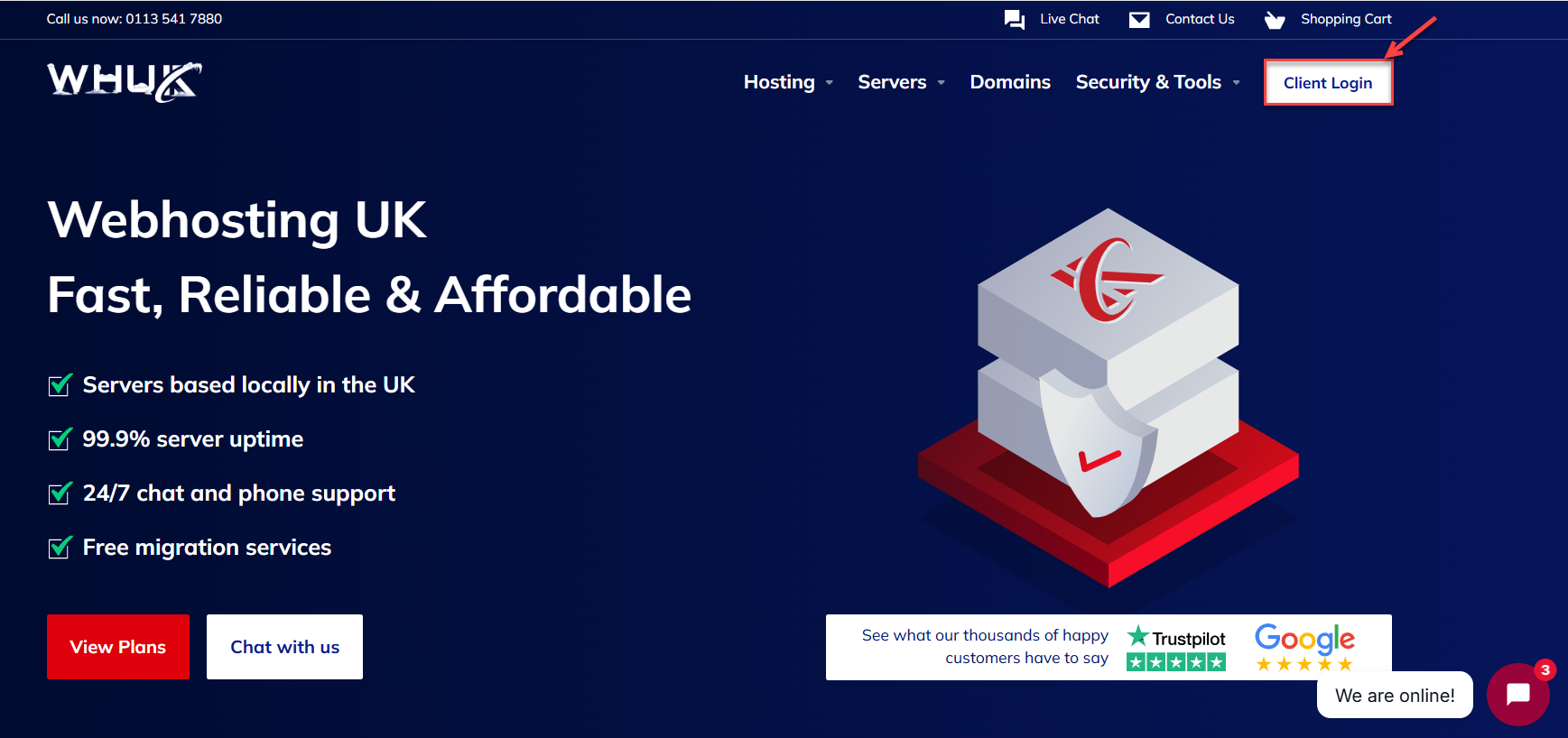
    webhosting uk
  2. Open 2FA / Security Settings
    • Click on your profile name at the top-right corner of the portal.
    • From the dropdown menu, select 2FA / Security Settings.

                                             OR
    • You can find the 2FA / Security Settings option directly under ‘Your Profile’ on the main page.
      You will be redirected to the Two-Factor Authentication settings page.
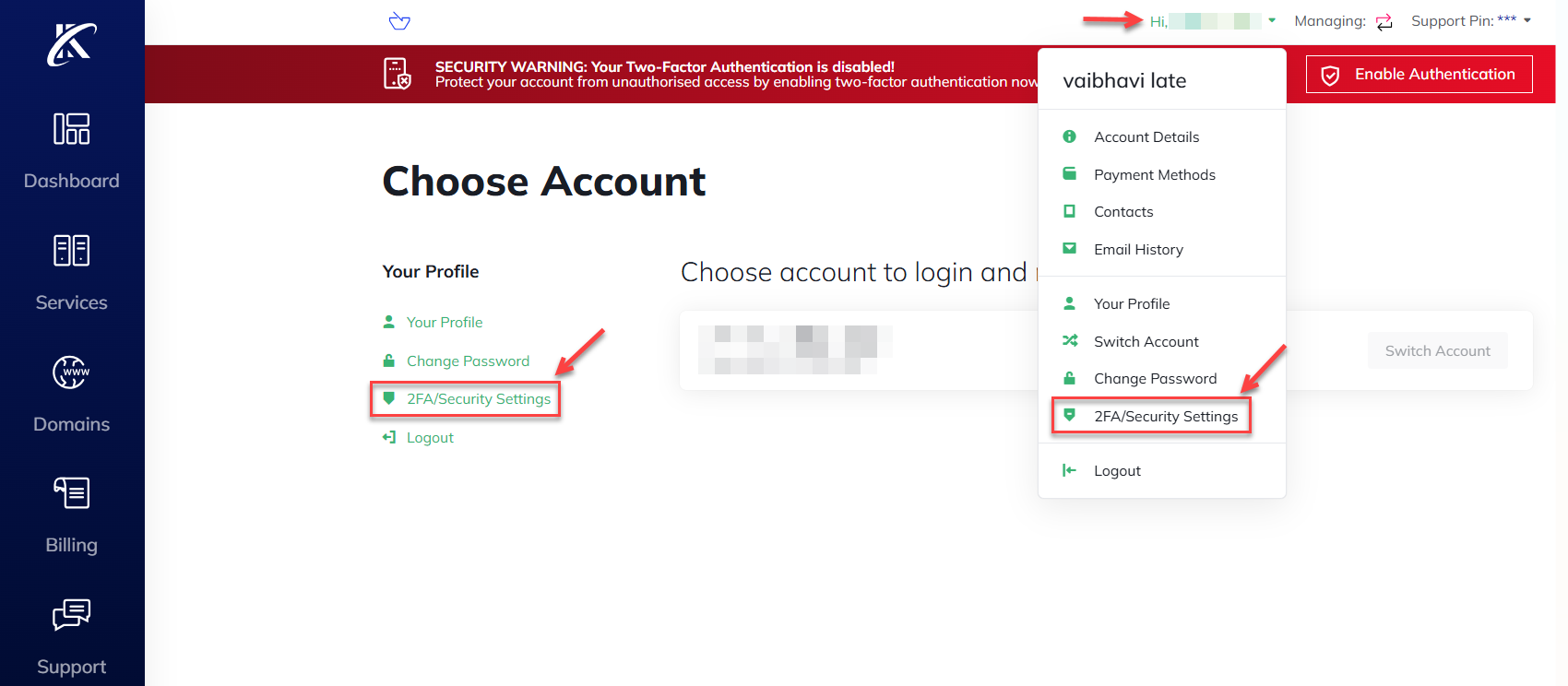
      2 fa
  3. Enable Two-Factor Authentication
    • On the 2FA/Security Settings page, click on Enable Authentication.
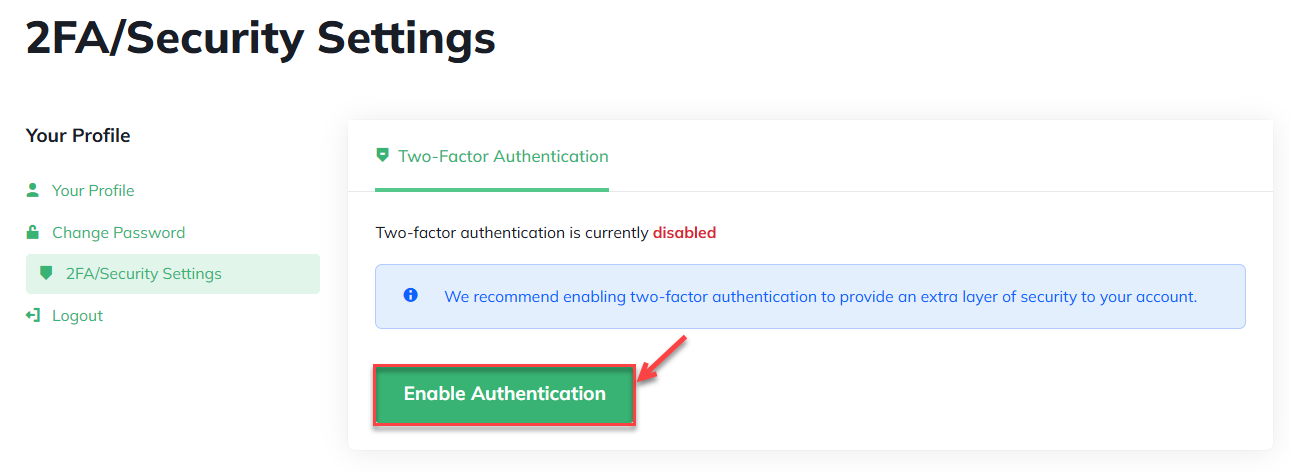
      enable authentication
    • Select your desired Two-Factor Authentication method and click on the Get Started button.
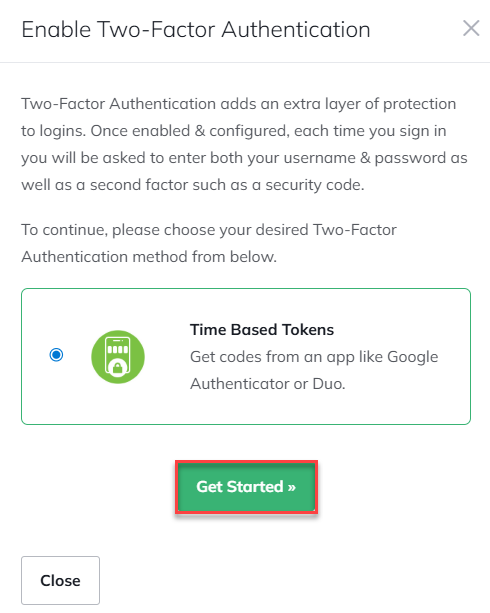
      get started
  4. Scan the QR Code
    1. A QR code will be generated on the screen.
    2. Open your chosen authenticator app on your device.
    3. Use the app to scan the QR code displayed in your client portal.
    4. The app will generate a 6-digit one-time password (OTP).
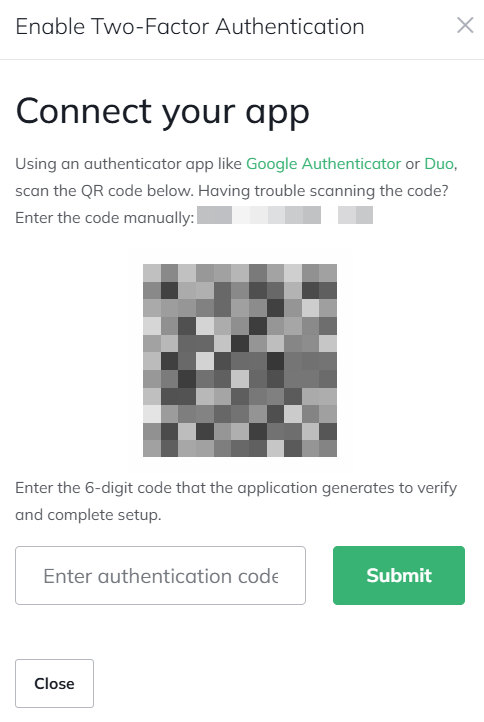
      connect your app

  5. Verify and Confirm
    1. Enter the one-time password generated by your authenticator app into the verification field.
    2. Click Submit to confirm.
      Important: Make sure to save the backup/recovery code displayed on the screen in a secure location. This code can be used if you lose access to your authenticator app.
  6. Confirmation
    Once enabled, you will see a confirmation message stating that Two-Factor Authentication is currently enabled.
    From now on, every time you log in to your client portal, you will be prompted to enter the time-based security code generated by your authenticator app.

How to Disable Two-Factor Authentication (Optional)
If required, you can disable 2FA at any time:

  1. Go to Profile > 2FA / Security Settings.
  2. Click on Disable Authentication.
  3. Confirm your action when prompted.

This way, you have successfully enabled Two-Factor Authentication and added an extra layer of security to your account. We highly recommend keeping 2FA enabled to protect your services and personal information.

If you use WHM and want to add an extra layer of security to your server, then take a look at our guide on How to enable two-factor authentication (2FA) in WHM

Spread the love
Tagged: 2FA

Related Articles

How to restore a Managed Account’s Site Content to Default

March 19, 2025

How to view your account’s resource usage history

August 7, 2024

How to locate your support pin with WHUK

August 6, 2024
Posted in: Account Management Tagged with: 2FA
Back to Blog Home

Subscribe WHUK

Categories

  • Account Management (4)
  • Command Line (23)
  • Control Panels (324)
    • cPanel & WHM (242)
    • Enhance (4)
    • Plesk (78)
  • Domain and DNS (20)
  • Getting Started (6)
    • WordPress (5)
  • How-to Guide (36)
  • Sales FAQ (13)
  • Security and Backups (61)
    • Acronis Backup (9)
    • Imunify 360 (12)
    • SSL (18)
  • Servers, Hosting & Email (199)
    • cPanel & WHM (24)
    • Dedicated Server (1)
    • Email Hosting (21)
    • MS SQL (1)
    • MySQL (44)
    • Plesk (3)
    • Virtual Server (8)
    • WordPress (53)
  • Web Development (22)

Latest KB's

  • cPanel Security Advisory – CVE-2026-41940 (Critical)
  • How to Change PHP Version and Restart PHP for a Website in Enhance
  • How to Create Email Accounts, Manage DKIM, Catch-All Emails & Databases in Enhance
  • How to Add a New Website or Migrate Your Website from cPanel to Enhance
  • How to Access and Manage Your Enhance Account

Latest Blog

  • Latest Hosting and Tech News
  • Hosting Renewal Coming Up? Here’s What Businesses Should Compare Before Renewing
  • Latest Hosting and Tech News
  • Growing Websites Rarely Break Overnight: The Warning Signs Usually Start Earlier
  • Why Server Updates Matter: Lessons from a Week of Major Vulnerabilities

Archives

Webhosting UK
Webhosting

Part of the Hyperslice® Group, we deliver key cloud and app hosting solutions to over 35,000 customers worldwide.

Read more
Hosting
  • Web Hosting
  • Reseller Hosting
  • VPS Hosting
  • Sustainable Hosting
  • Dedicated servers
  • Cloud Hosting
  • Content Creator
Company
  • About Us
  • Contact Us
  • Client Area
  • Affiliate Program
  • Site Map
Resource
  • Forum
  • Blog
  • Knowledgebase
  • Service Status
Legal
  • Terms of Service
  • Privacy
  • AUP
  • Management Agreement
  • Nominet Terms
  • Microsoft End User License Agreement
  • .UK SLA
  • Complaints
Social
  • Twitter Twitter
  • Facebook Facebook
  • Youtube Youtube
  • LinkedIn LinkedIn
  • Instagram Instagram
Visa Mastercard American Express PayPal

Copyright © Webhosting UK COM Ltd. All rights reserved

Part of the Hyperslice® Group.

LRQA ISO Cyber Essentials Plus