This guide explains how to locate and review WordPress error logs to identify the cause of the “There Has Been a Critical Error on This Website” message. Checking error logs helps pinpoint the exact file and error responsible for the issue, making troubleshooting easier.
Here is how:
- Log in to cPanel.
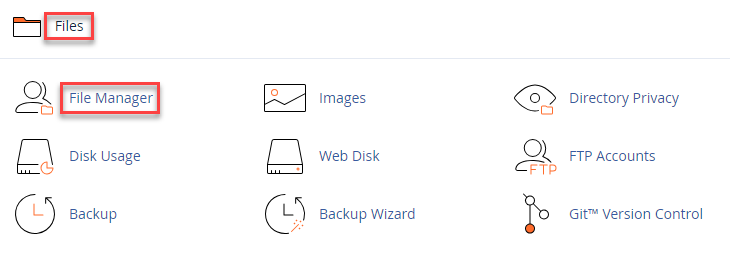
- Click on the “File Manager” sub-option, under the “Files” section.
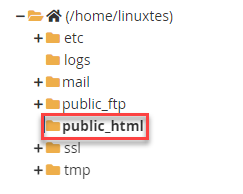
- Navigate to the “public_html” folder.
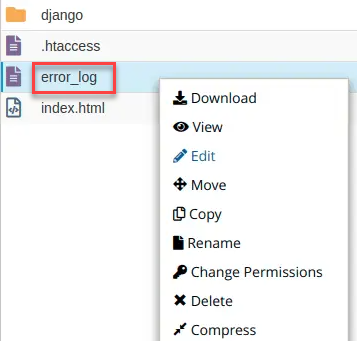
- Find the file named “error_log”.
- Simply right-click on the “error_log” file and select “Open” to view its contents.
Important note- If you do not have cPanel, you can use an FTP client such as FileZilla.
- Navigate to your WordPress installation directory and locate the “public_html” folder. Then, search for files named “error_log.”
- Now, open the error log file and find the error message with the exact reason.
- Once you identify the error, you can troubleshoot and fix it.
Hope you liked our article. If you want the latest information, visit our KB section regularly.