Backing up an SQL Server database using Management Studio ensures data integrity and protection against data loss due to system failures, accidental deletions, or corruption.
Follow the steps:
- Open Microsoft SQL Server Management Studio (Standard or Express edition).
- Log in using your database username and password.
- Select the database, then right-click and go to Tasks > Back Up.
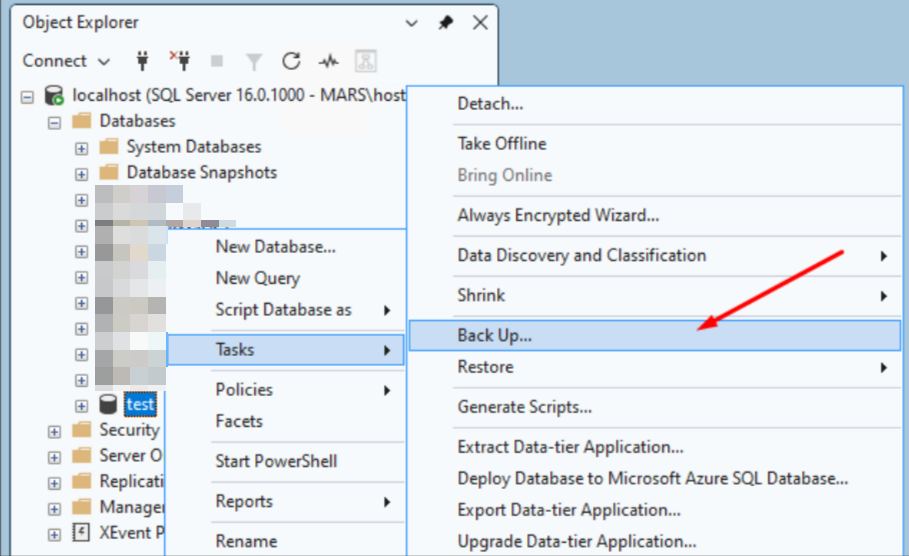
- The Back Up Database window will appear.
- Select the following options:
Backup type: Full
Under Destination, select Disk. - Click Add, then choose the destination path and file name for the backup.
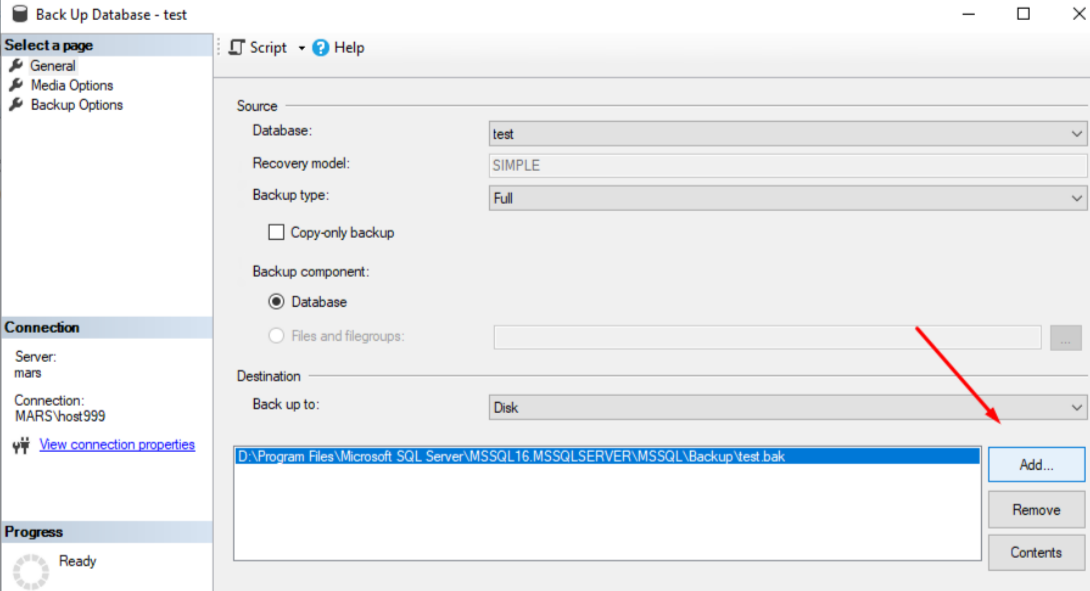
- Ensure the file name has a .bak extension.
- It is recommended to save the backup file in the MSSQL backup folder.
- Click OK to start the backup process.
- Once completed, you will see the confirmation message:
“The backup of database ‘SQLDatabaseName’ completed successfully.”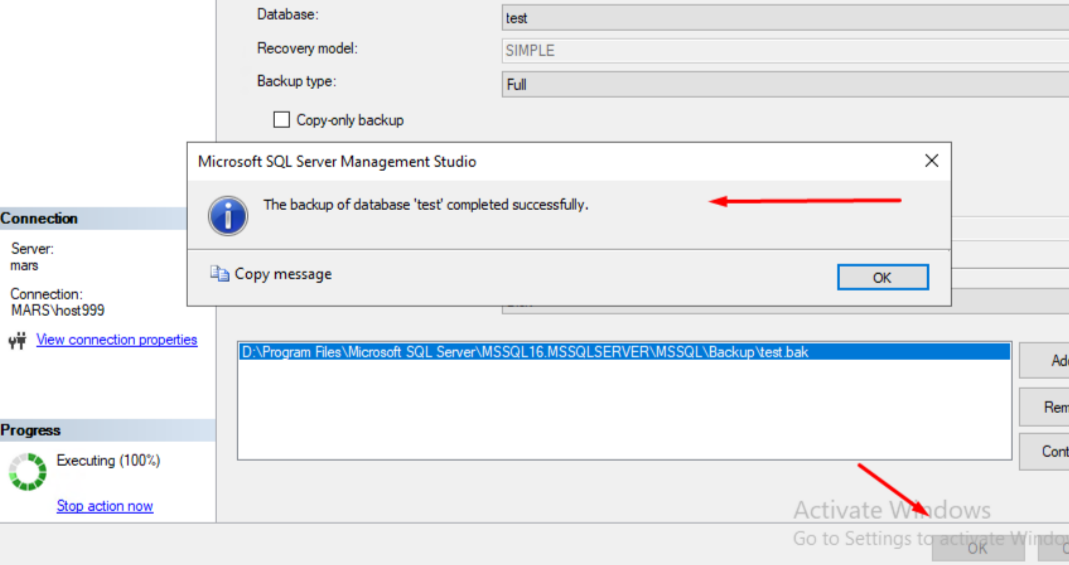
You can now proceed to restore the backup file if required.
Take a look at how to Restore MS SQL Server Database Backup File