This article will help you in blocking suspicious IP addresses in WHM. It helps in protecting your website and server from brute-force attacks, hacking attempts, or unwanted traffic.
Let us follow the guide:
- Log in to WHM.
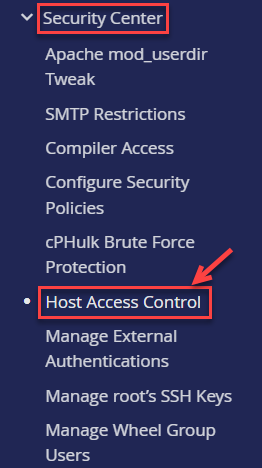
- Select the ‘Security Center’ option and click on the ‘Host Access Control’ sub-option.
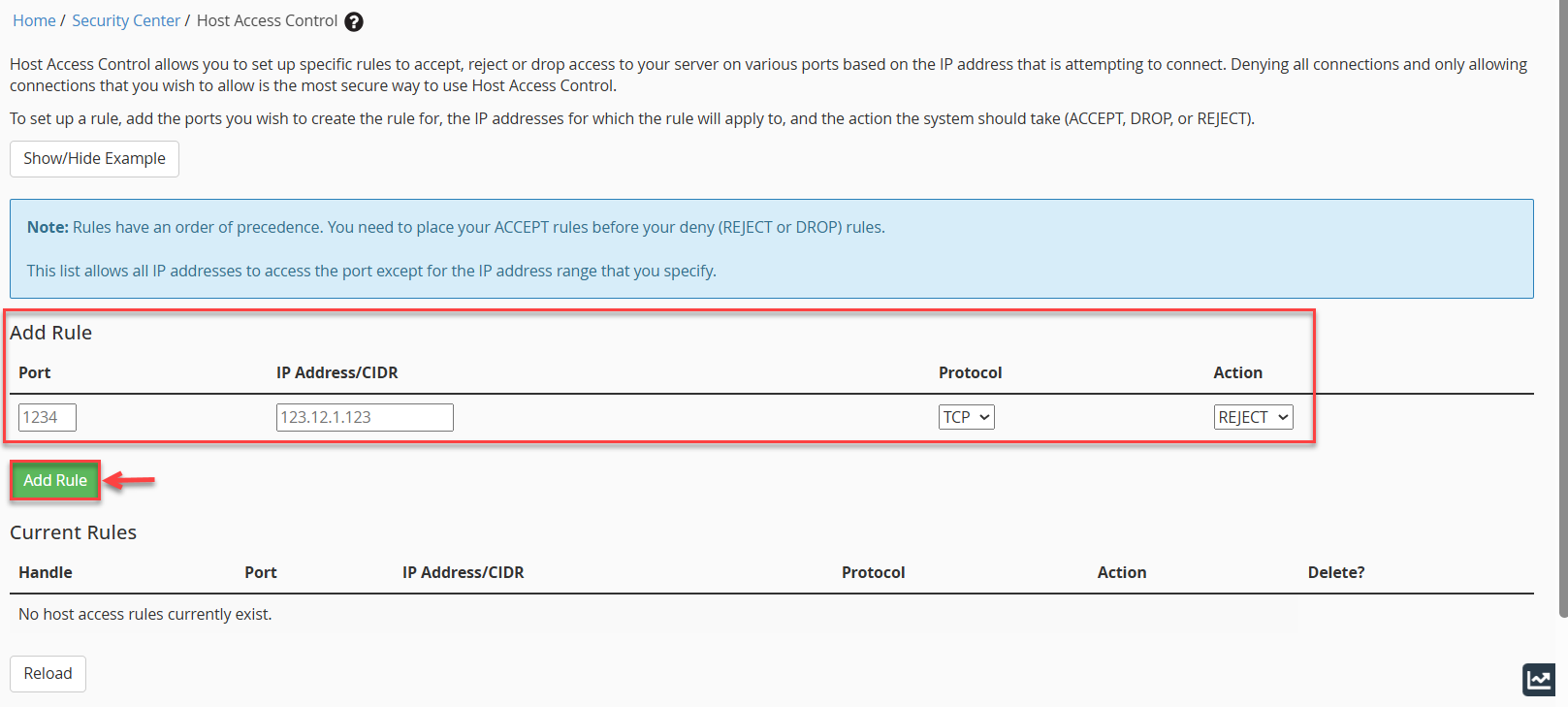
- You will be redirected to a new page to add a rule to block the IP:
- In the Port field, enter the port number you want to block (or leave it blank to apply to all).
- In the IP Address/CIDR field, enter the suspicious IP address.
- In the Protocol dropdown, select the appropriate protocol (TCP, UDP, or ALL).
- In the Action dropdown, choose REJECT or DROP to block access.
- Click Add Rule, then click Save Host Access List.
- Alternatively, you can use cPHulk in WHM, which offers brute-force protection and can automatically block suspicious IP addresses.
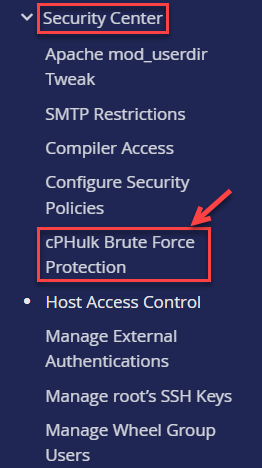
- Go to Security Center> cPHulk Brute Force Protection.
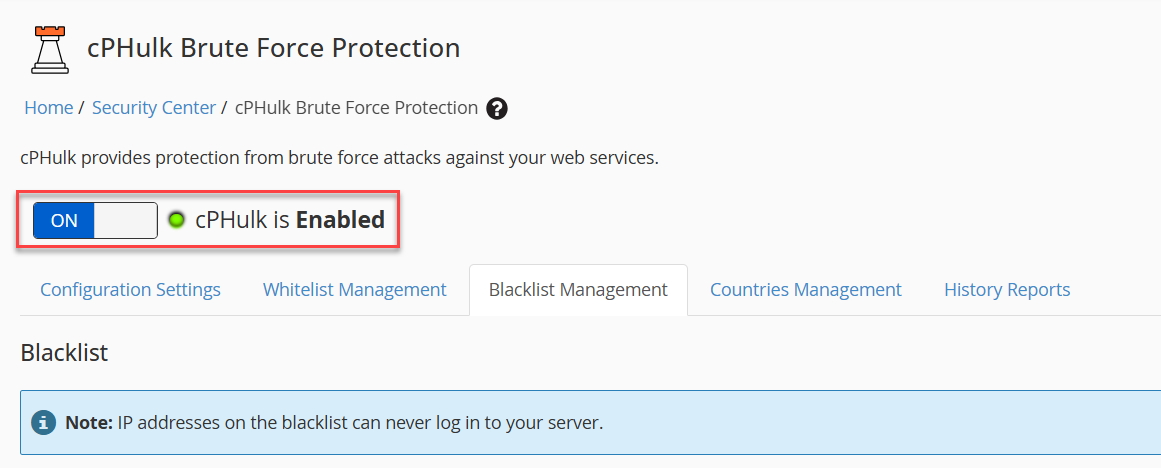
- Enable cPHulk if it’s not already active using the toggle switch as shown below.
- You will receive a success message.

- Add the suspicious IP under the ‘Blacklist Management’ section and click ‘Add’.
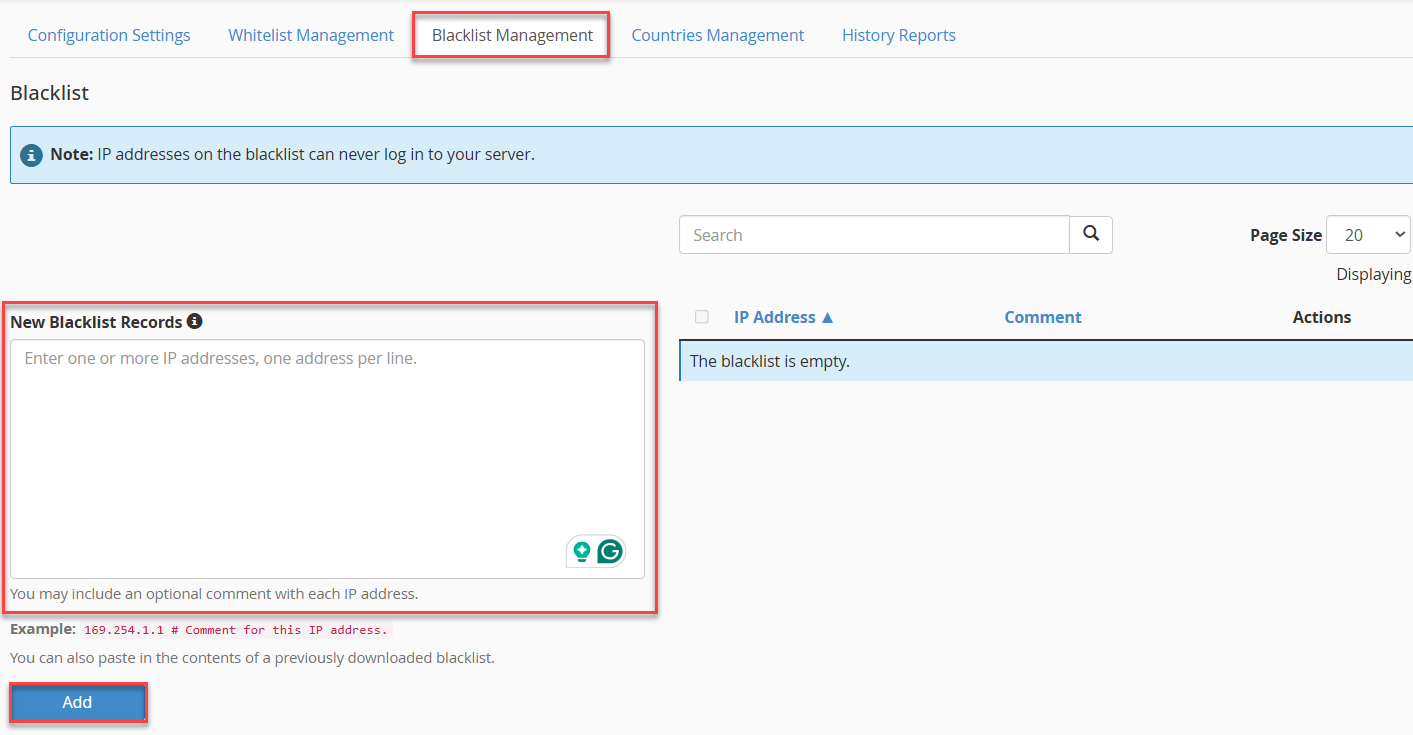
- Go to Security Center> cPHulk Brute Force Protection.
- Some important tips for identifying suspicious IPs:
- Check server logs for repeated failed login attempts.
- Use security plugins/tools to monitor traffic.
- Track unusual spikes in server resource usage.
We hope you relished the article, and do not hesitate to contact our support staff if you need any extra assistance. Also, do not forget to check our latest web hosting plans.
Want to secure your WordPress site too? Learn How to block IP address in WordPress manually