After installing an SSL certificate on your Windows Server, you must bind it to your website in IIS. Without an SSL binding, visitors may see security warnings, and the site will not load over HTTPS.
This guide explains how to configure SSL binding in IIS to secure your website.
Table of Contents
Why is SSL Binding Important?
- Enables encryption for secure communication
- Eliminates browser “Not Secure” warnings
- Enhances customer trust and user experience
- Recommended by search engines for better ranking
- Required for login or eCommerce functionality
Steps to Bind SSL in IIS
- Open IIS Manager
- Press Windows + R to open the Run dialogue, enter “inetmgr,” and press Enter.
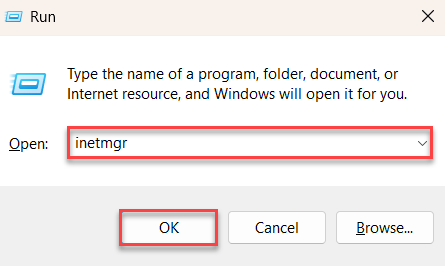
or - Open Internet Information Services (IIS) Manager from the Start menu.
- Press Windows + R to open the Run dialogue, enter “inetmgr,” and press Enter.
- Select Your Website
- Expand the server’s name > expand Sites.
- Click the website you want to secure.
- Open Site Bindings
In the Actions panel, click Bindings. - Add or Edit HTTPS Binding.
- If HTTPS is not listed, click Add.

- If HTTPS exists, select it and click Edit.
- Configure the following:
- Type: HTTPS
- IP Address: Specific IP or All Unassigned
- Port: 443
- Hostname: The domain name (example: www.example.com)
- SSL Certificate: Select the installed certificate
- If multiple sites are using SSL on one IP, enable Require Server Name Indication (SNI).
- Click OK to save changes.

- If HTTPS is not listed, click Add.
- Restart the Website
In the Actions panel, click Restart.
Troubleshooting
If HTTPS is not working after binding, check the following:
- The certificate must be in the Local Computer > Personal store.
- HTTPS binding must be configured on port 443.
- The hostname should match the domain in the certificate.
- If multiple SSL sites share one IP, enable SNI.
After making the changes, restart the site and test it with an online SSL checker.
Best Security Practices
- Disable outdated SSL and TLS versions: SSLv3, TLS 1.0, TLS 1.1.
- Enable TLS 1.2 and TLS 1.3 only.
- Configure HTTP to HTTPS redirection via URL Rewrite.
- Renew SSL certificates before expiry and update the binding after renewal.
Conclusion
Binding an SSL certificate in IIS is important to enable secure HTTPS access for your website. After installing the SSL, configuring the binding ensures encrypted communication and user trust. Follow these steps and best practices to keep your hosting environment secure and reliable. However, if you find any difficulty, feel free to contact our support staff.
A Windows VPS Hosting solution provides administrator access and the flexibility needed to manage SSL certificates, IIS settings and secure web applications.
Want to manage SSLs more efficiently? Learn How to manage service SSL certificates in WHM